
Canvas: Edit your website while you view it
Change a heading, replace a photo, or add a page while you review your website in Canvas.
A coffee roaster wants the product page to explain where the coffee is roasted and to show the current bag. In Canvas, the owner can open that page, point to the heading, and describe the new text. Then they can attach the new photo and say where it belongs. The page stays in view while they check the Agent’s work.
Start with the page you want to change
Open the site in the editor and find the page with the picker or page search. Click the part you want to refer to, or name the section in chat. In the coffee example, “Replace the first product photo with the attached image and keep the price and purchase button as they are” gives the Agent a small, clear job. Give the Frontpage Agent the right page and instructions when the change needs more context.
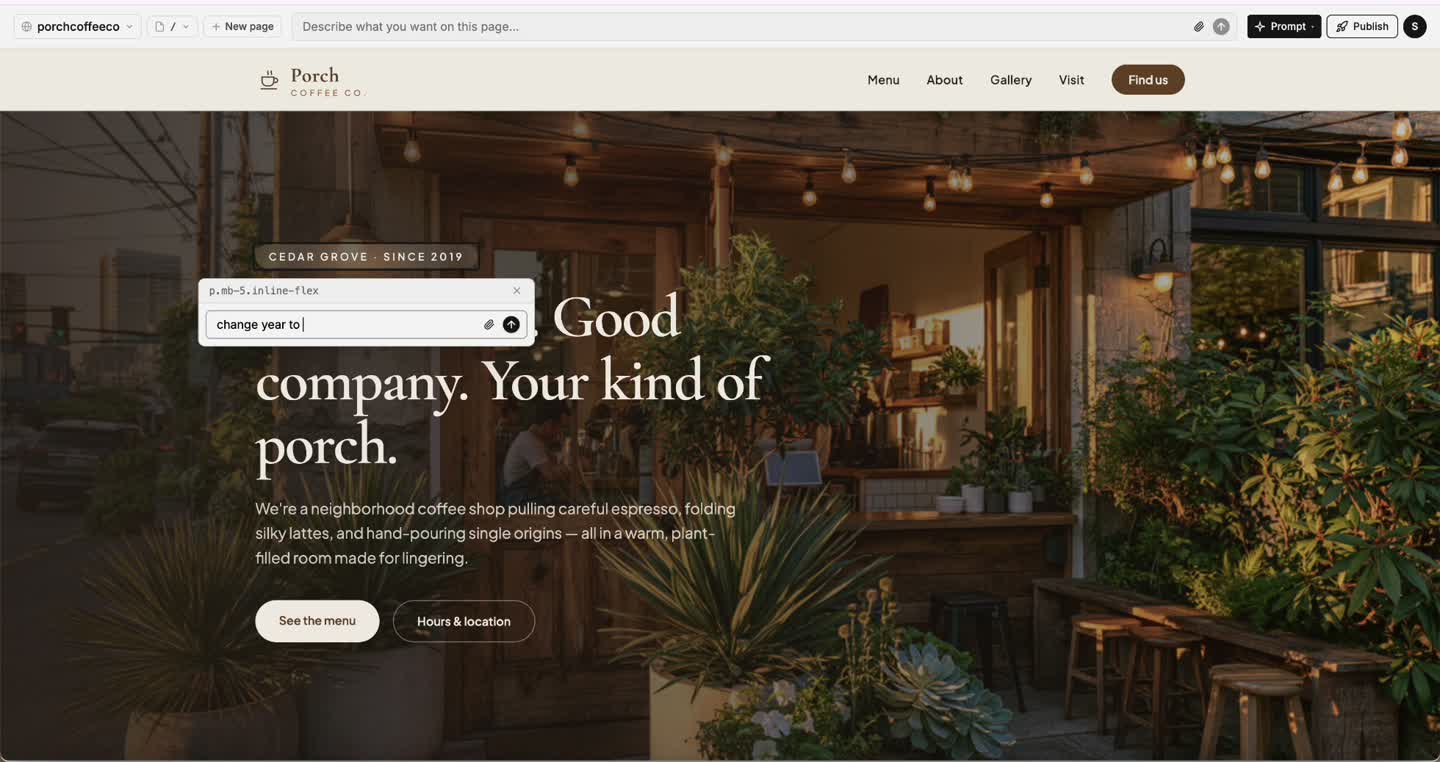
See the change in the working preview
Read the updated copy and check the picture in context. Try the product link and see how the layout looks on a phone. If the photo loses its label when the page gets narrow, ask for a different crop and check the next build. Follow the Canvas editing steps to go from selection to preview.
Publish when the page is ready
The preview gives you time to catch errors while visitors still see the published version. When the build is ready and you have reviewed it, choose Publish. Open the live product page and make sure the new headline and photo appear there. Review how website drafts become public if your team shares editing and publishing work.
Frequently asked questions
What is Canvas useful for?
Use it to review a website while you ask the Agent to change copy, images, sections, or pages.
Can I give the Agent an exact replacement headline?
Yes. Include the full wording and say which heading to replace. Review the result before publishing.
Can I change one page without changing the other pages?
Give the Agent the page and section and ask it to keep the rest of the site as it is. Check the preview before publishing.
Does Canvas publish changes automatically?
For this editing workflow, choose Publish after you review the ready version.