
How to connect an external AI agent to Frontpage
Connect a supported AI tool to an existing Frontpage site, choose the access it needs, and check the connection with a read-only task.
1. Use the setup path for your client
- Claude: In Customize → Connectors, add a custom connector named Frontpage and use
https://app.frontpage.host/api/mcp. Enable it in the chat. Claude Code also has a package and a direct setup. - ChatGPT: Open the published Frontpage plugin listing and choose Install plugin. Connect Frontpage, then select the plugin in a chat.
- Codex: Install the Frontpage plugin and start a new session. The direct MCP connection is also available.
- Grok Build: Add and connect Frontpage in your Grok account. Sign in to interactive Grok Build with the same account and check /mcps for the connection managed by Grok.
- Cursor CLI: Follow the public Frontpage package instructions or the documented project configuration for the hosted server. Start with the scopes your work needs.
Open the current setup instructions for your client for exact commands, account requirements, and supported connection types.

2. Choose your site and permissions
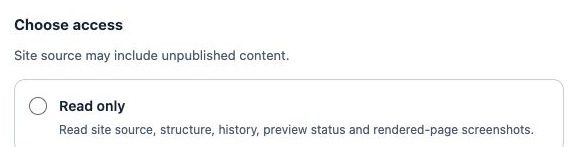
Sign in on app.frontpage.host when prompted. Confirm the account and choose the site coverage. Start with website read access to verify the connection. Editing, publishing, People and email, and other business tools can require separate permissions. You can connect on any Frontpage plan. Your role, usage limits, and the AI provider’s access rules still apply. Compare the workflows the MCP Server supports before granting access beyond the task.
3. Confirm the connection and review a small edit
Ask: “List my Frontpage sites without changing anything.” Check that the site you intend to use appears. If you have edit access and want to try a change, ask the client to update one sentence on a test site and leave it in preview. Open the matching ready preview before doing anything public. See how a preview differs from the published website.
4. Review or remove access
In Frontpage, open Developers → Connected Apps. Find the connection you want to remove and disconnect it there. You can reconnect later with narrower site coverage or different permissions. If you use a terminal with an API key for other tasks, see how the Frontpage CLI setup differs.
Frequently asked questions
Do I need a Frontpage CLI API key to connect an AI client?
The documented hosted setup uses Frontpage sign-in and consent. It does not require a Frontpage CLI API key.
Can the connection see all my Frontpage sites?
It can see the sites covered by your grant that your Frontpage account can access. Choose selected sites when you only need a few.
Can a client publish a website edit automatically?
Publishing is a separate action that needs the appropriate access. Review the ready preview and explicitly approve any publication you want.
How do I revoke a connection?
Open Developers in Frontpage and disconnect the grant under Connected Apps. Removing local configuration alone leaves the Frontpage grant in place.