
How to manage your website SEO
Set a page’s search title and description, check its visibility, and verify the published result.
Choose one public page people should find, such as a page for bicycle tune-ups in Austin. Write the title and description before opening the settings. Use the actual service, location, and business name. If you are preparing an article instead of a main site page, check the article publishing workflow as well.
1. Open Search & sharing
Select the page in your Frontpage workspace and open Search & sharing. Check that the selected page has the path you intended. Edit Title and Description. For example, use “Bike Tune-Ups in Austin | Harbor Cycle” as the title, then describe what a tune-up includes and how to request one. Review the Google result preview. It shows what the fields can look like in a result.
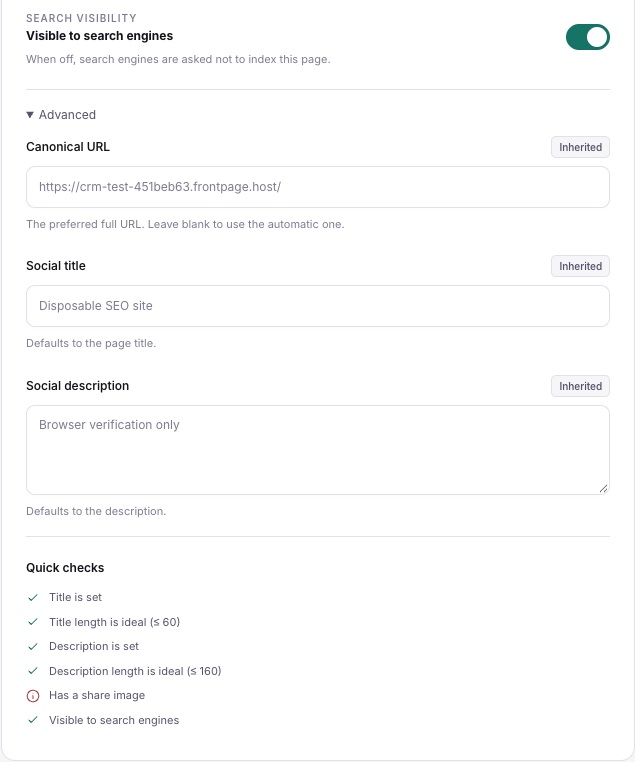
2. Check visibility and the preferred URL
For a page people should find in search, review Search visibility. A page hidden from search can still be reachable by its link, so use access controls for private information. When you have a specific reason to set a preferred URL, open Advanced and review Canonical URL. For ordinary pages, use the default unless you know which address should be preferred. Read the basics of search visibility and page titles before changing settings across several pages.
3. Improve what people see on the page
Make the main heading describe the actual service. Check that links say what they open and that informative images have useful alternative text. Review the page and its links in Canvas before publishing. The settings describe the page; the page itself still needs to answer the visitor’s question.
4. Save, publish, and verify
Save the settings and review the ready preview. Publish when you want the changes to reach the public page. Open the live URL, check the browser tab title, and check that the public sitemap lists the page when you want it indexed. For a property you manage, use Google Search Console’s URL Inspection tool to check Google’s view and request a recrawl if needed. Google chooses when to revisit a page and which text to show.
If search still shows the old title
First confirm the right site version was published. Check the public page’s title and whether its visibility and preferred URL are right. If those look correct, check Google’s last crawl date before changing the fields again.
Frequently asked questions
Can I set a different title for social links?
Where the fields are available, use the social title and description in Advanced. Check the Social card preview.
Does hiding a page from search require a password to open it?
No. Search visibility asks search engines to exclude the page. It does not control who can open a URL.
Should I fill in Canonical URL on every page?
Most pages can use their default. Set it when you have a specific preferred address for duplicate or very similar content.
How quickly will Google display the new description?
Google sets its own crawl schedule and can choose a different snippet. Confirm the live fields first.