
Connect Frontpage to a subdomain
Put Frontpage on a subdomain you already own, such as www.yourdomain.com or go.yourdomain.com. The connect window detects your provider and uses the same steps at every registrar.
A subdomain is the label in front of your domain: www, go, or
app. Frontpage can serve any of them. Your existing site can stay on
yourdomain.com if you only add records for the subdomain you type.
Right guide
Use this when Frontpage should serve that address. To point a subdomain at ordering or tickets instead, see Connect a subdomain for external tools. One address cannot do both.
1. Start in Frontpage
- Open Publish (or the domain step) and choose the domain you already own.
-
On Connect your domain, type the full subdomain, such as
www.yourdomain.comorgo.yourdomain.com. - Click Connect.
Type the address you want live. If you type only the root, the next screens may also ask you to
point yourdomain.com at Frontpage.
2. Continue with your provider
A window opens: Connect your [provider] domain to Frontpage. The large button is Continue with that provider.
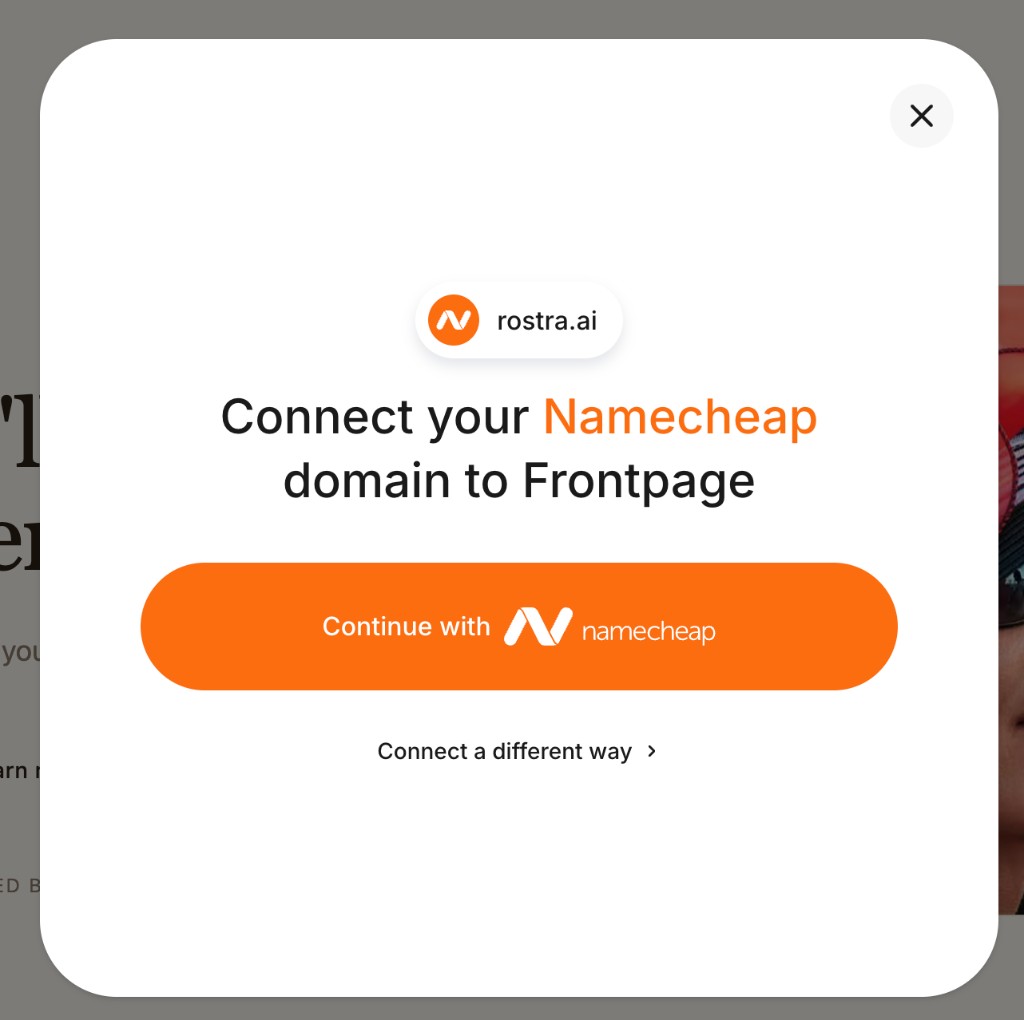
- If the provider is correct and you can sign in, click Continue with [provider] and approve the change.
- If the provider is wrong, or login fails (social login, passkey, two-factor), click Connect a different way.
The automatic path writes DNS for you. When it finishes, wait in Frontpage until the domain is connected and ready, then publish.
3. Other ways to connect
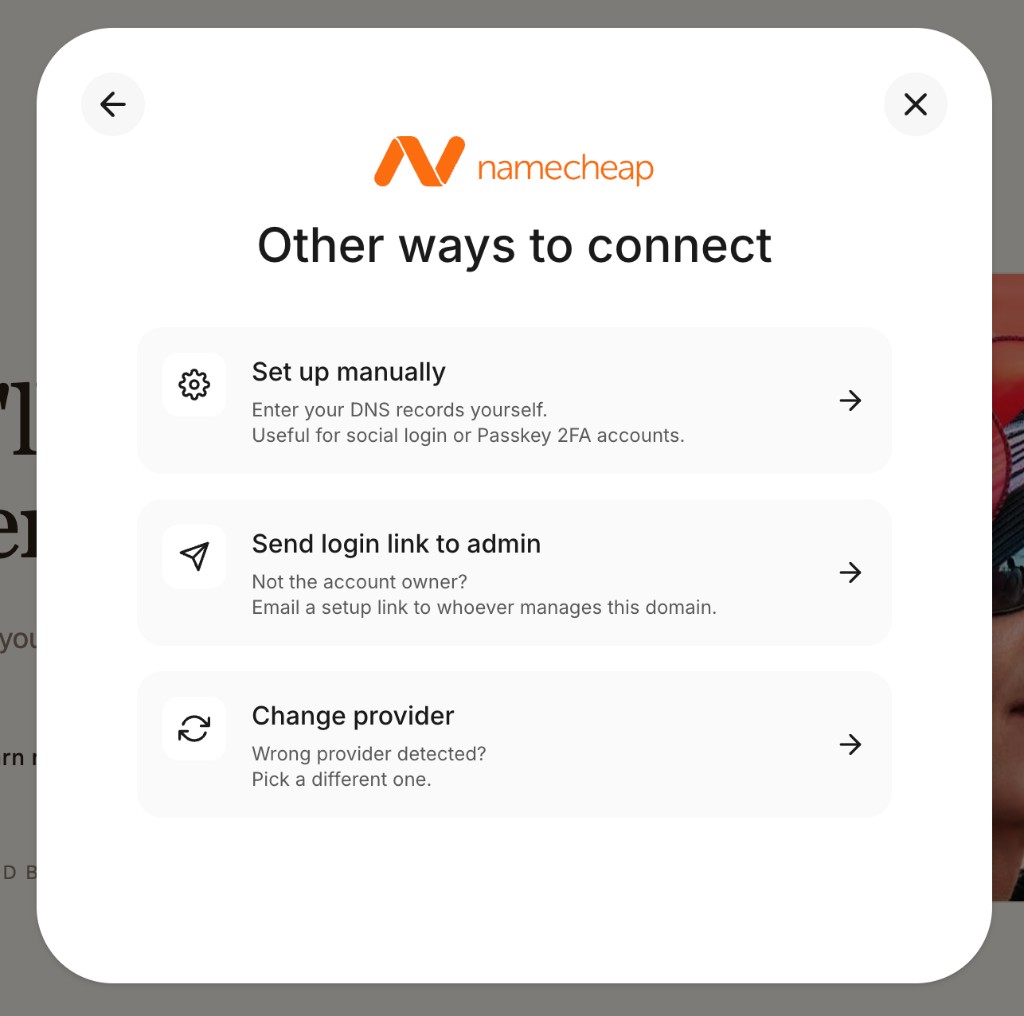
- Set up manually: enter the DNS records yourself.
- Send login link to admin: email setup to whoever owns the domain account.
- Change provider: pick the company that actually hosts your DNS, then continue or set up manually.
4. Add the subdomain record
Manual setup opens Please add these records. Copy every field from this window. Do not invent values.
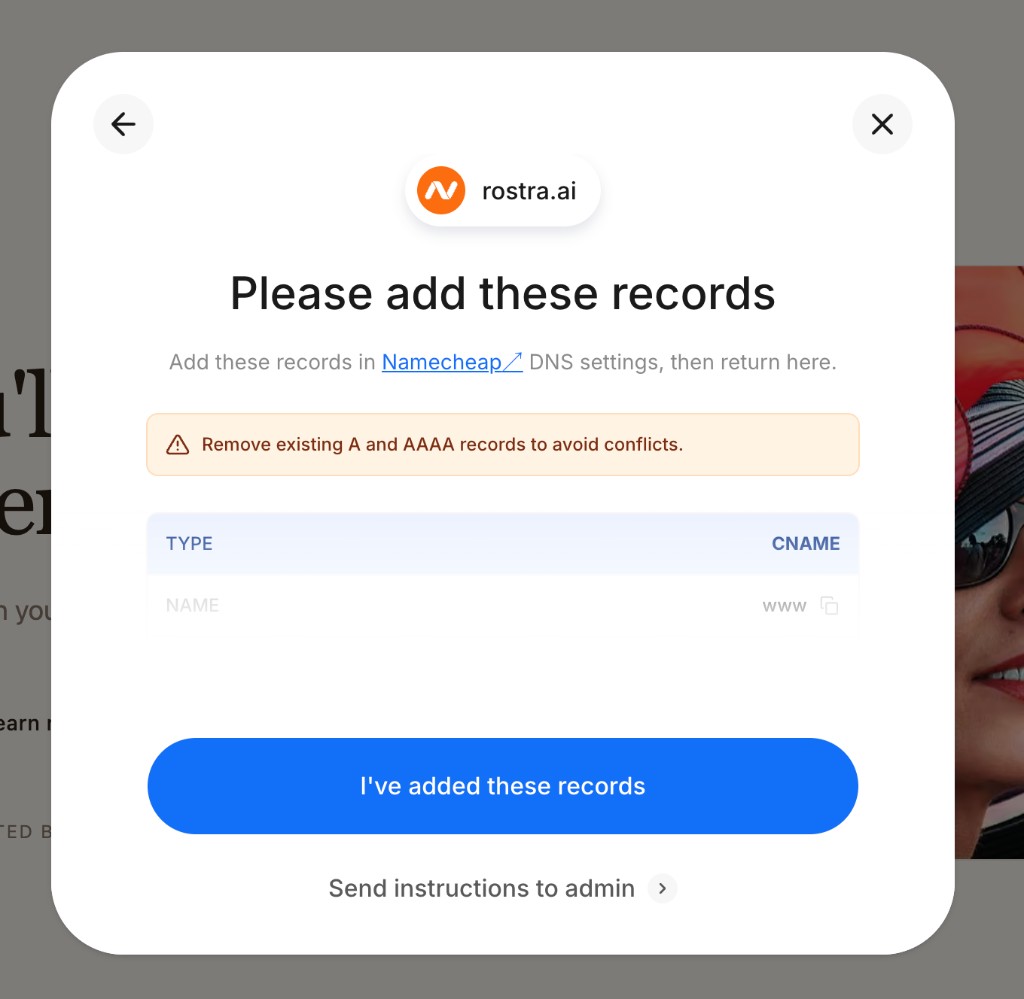
- In your DNS host, add a record matching the type shown (usually CNAME).
- NAME is the label only:
wwwmeanswww.yourdomain.com. Some hosts want the full name. Match their form. - Paste VALUE into Value, Points to, or Target. Use the copy icon.
- Save. Leave TTL on the default unless the window asks for a number.
Conflicts
If you see Remove existing A and AAAA records to avoid conflicts, delete only old A or AAAA rows on this same name. Leave mail, TXT, and other subdomains alone. A name can have only one CNAME. Replace an old CNAME on that name; do not stack a second one.
Click I've added these records. If someone else is making the change, use Send instructions to admin.
5. Add @ A records only if you want the root too
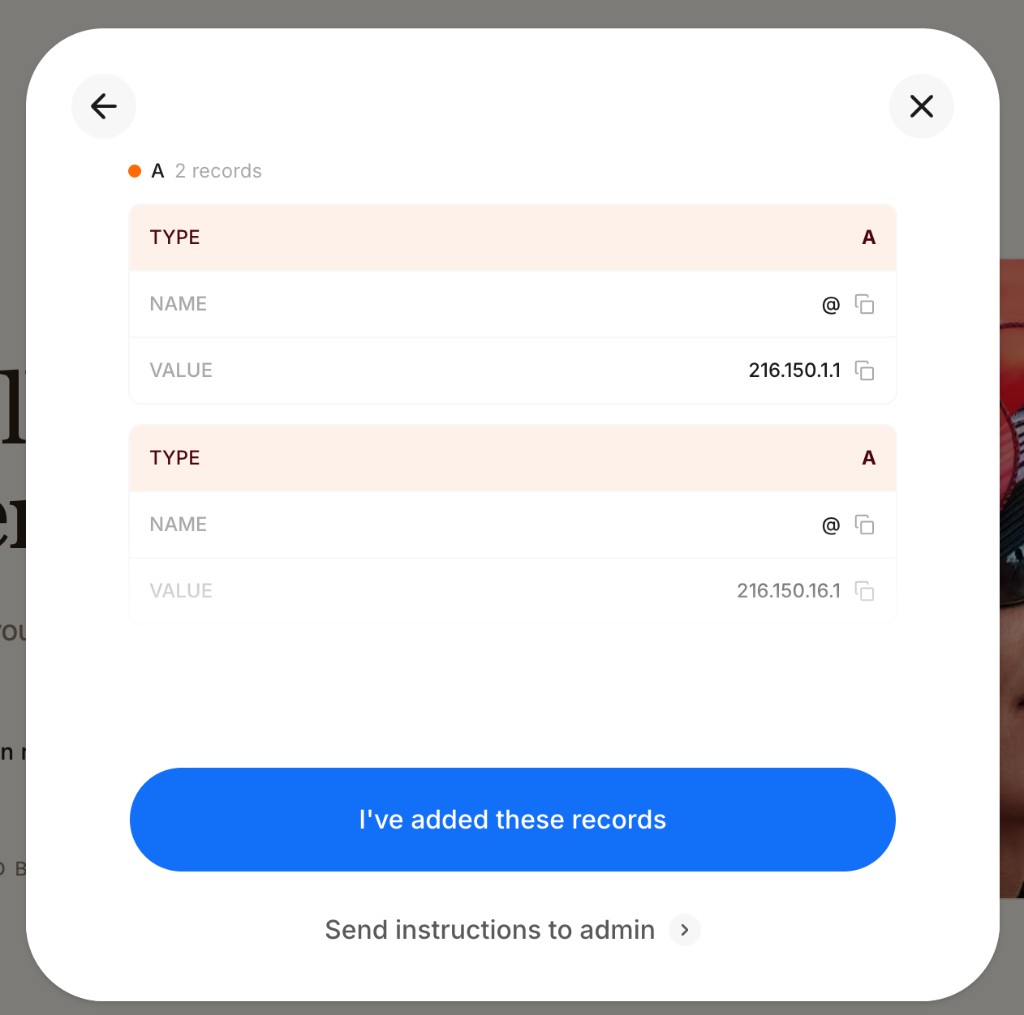
Some connections also show A records named @. That is the root
(yourdomain.com), not the subdomain. If there are two, add both.
Keep an existing root site
Adding @ A records moves yourdomain.com to Frontpage. If another
site should stay on the root, add only the subdomain record from step 4. Unsure? Email
support@frontpage.host before you save.
If you do want the root on Frontpage, replace existing A or AAAA rows on @, add
each value from the window, then click I've added these records. Always copy
from the window. Do not reuse IPs from this article.
6. Wait, then publish
- Return to Frontpage and wait until the address is connected and ready.
- Click Publish.
- Open the https address in a private window and confirm your site and the padlock.
DNS is often ready in minutes, sometimes hours. SSL is created for you after the records resolve. Do not buy extra SSL at your registrar.
If something goes wrong
- Wrong provider: Connect a different way, then Change provider. Edit DNS where it is actually hosted (often Cloudflare, not the registrar).
- Login will not finish: Set up manually, or Send login link to admin.
- Old site still on the subdomain: an old A, AAAA, or CNAME is still on that name. Remove it and wait.
- Root site disappeared:
@A records were added. Restore the previous root records if that was not the plan, then email support@frontpage.host. - Not secure / not ready: wait, then confirm name and value match the window exactly.
Still stuck? Email support@frontpage.host with the subdomain, the provider shown, and a screenshot of the records window.
Frequently asked questions
Do I have to use www?
No. www is common, but go, app, site, or another short word works the same way. Type the exact address you want.
Will this work at any registrar?
Yes. The buttons stay the same. Only the provider name and logo change.
Can I keep my current site on the root domain?
Yes. Type only the subdomain (for example www.yourdomain.com). Add only that host's records. Do not add or replace @ A records unless you also want the root on Frontpage.
Continue with my provider, or Set up manually?
Use Continue with your provider if you can sign in to the domain account. Use Set up manually for social login, a passkey, two-factor that blocks the automatic path, or if someone else manages DNS.