
Google reviews: Show customer feedback on your website
Show feedback from the right Google business listing and share a link customers can use to leave their own review.
A salon wants visitors to read about past appointments before booking. It can connect the salon’s public Google listing, add a review section near the booking information, and check how that section looks on a phone.
Connect the correct business
Search by business name or paste a Google Maps link. For two branches with similar names, compare the address before connecting. Frontpage uses the selected public listing and displays reviews it receives from Google. Follow the Google reviews setup guide to connect and confirm the result.
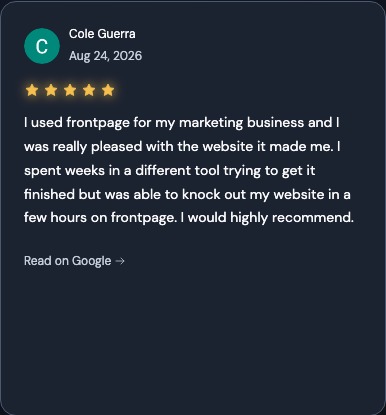
Place the reviews where customers need them
A salon might place reviews under its services or near the booking link. Check that the visible feedback fits the page. Use the available filters or ordering when needed, then review the section on desktop and mobile in Canvas. A rating and review on the website reflect the linked listing.
Share the link when it helps
Copy the Google review link if the workspace shows it. Include it in a thank-you message after the appointment so the customer can open Google and leave feedback. Review how to prepare customer emails if you plan to send a broader update. The request link gives customers an option and they decide whether to use it.
Frequently asked questions
Does Frontpage write reviews for me?
Reviews come from Google. Customers write their own feedback there.
Will the website show every review from the listing?
Google may return only a selection. Your rating filters and review order also affect what visitors see.
Can a business with several branches use this?
Yes. Connect the listing that represents the location the site is for and check its address first.
Can I check for newer reviews?
Use Refresh in Google reviews and read the status after the check completes.