
How to manage product variants and stock
Offer the right sizes or colors and track how many of each option you can sell.
A variant is a choice of the same product, such as a cap in Small or Large. Each variant can have its own price and stock count. Use variants when a customer’s choice changes what you need to keep in stock.
This example uses a cotton cap priced at $24, with five Small caps and eight Large caps. The two sizes belong to one product, so customers can choose a size on the product page.
Before you start
Store is available on every plan, including Free. Editors and admins can manage products. A site admin connects Stripe and finishes setup before customers can pay. Open your site’s Business → Store → Products, then open an existing product or choose Add product.
Have the price and current stock count for each option ready. Prices use the currency shown in Store. If you are editing a product supplied by Printify, manage its variants in Printify and sync them to Frontpage. A local stock limit does not override Printify availability, and a later sync can replace that limit.
1. Turn on variants
In Pricing and stock, turn on This product has variants. Under Option name, enter Size.
The option name describes the kind of choice. Small and Large are values under Size. For a color choice, use Color as the option name and values such as Blue and Green.
Keep the names clear and use the same spelling each time. If an existing product already has more than one option, preserve its current combinations while editing. Do not create a second product just to add another size.
2. Add Small with its price and stock
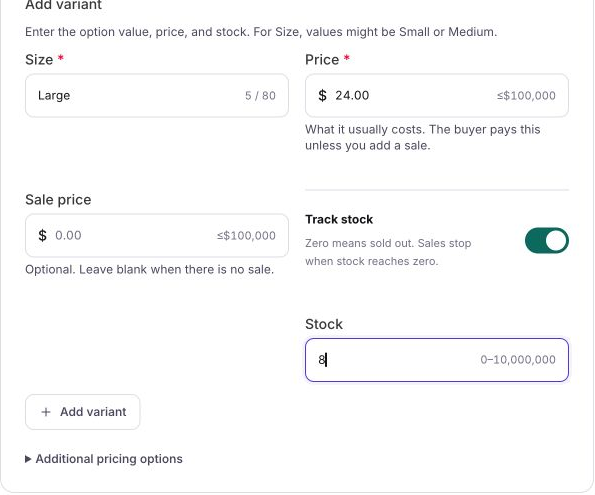
In Add variant, enter Small under Size. Enter 24.00 in Price for this USD example. Leave Sale price blank unless you are offering a sale.
Turn on Track stock and enter 5 in Stock. Select Add variant.
Stock is a whole-number count. Enter five units as 5, not 5.00. A count of zero means sold out. Stock tracking off means there is no local quantity limit; it does not mean zero.
3. Add Large as a separate variant
Add another variant with Size set to Large, Price set to 24.00, and tracked Stock set to 8. Select Add variant and review both rows.
| Example size | Price | Tracked stock |
|---|---|---|
| Small | $24.00 | 5 |
| Large | $24.00 | 8 |
You can price the sizes differently if needed. Check the selected variant’s price on the public product page rather than assuming the product’s starting price applies to every option.
4. Save and reopen the product
For a new product, the variants save when you select Save changes for the product. Adding them to the unfinished list alone does not create the product.
For an existing product, adding or removing a variant saves immediately. Edits to existing variant values, prices, and stock use Save changes. Read the message above the variant list so you know which action you are taking.
Wait for the save to finish and read any error. Go Back to products, reopen the cap, and confirm that Small and Large retain their prices and stock settings.
Ordinary product data saves through Store. You do not need to publish the website again just to save a price or stock count. Adding or changing the website’s product layout is a separate website edit that you review and publish.
5. Check what customers can choose
Open the public product page. Select Small, then Large. Check that the selected size and price match the saved product. Add a size to the cart and confirm that the cart shows the intended option and quantity.
A variant with tracked stock at zero cannot be bought. A customer also cannot check out with more units than are available. Check product and variant availability as well as stock if an option cannot be purchased.
You can check the layout and cart without making a real charge. Payment setup and delivery or pickup settings still need to be ready before customers can complete purchases.
6. Update stock when you receive more products
Open the saved product, find the affected variant, and enter the actual count you can now sell. If Small had five caps and you received four more, enter nine only after checking that no sales have reduced the count in the meantime. Save the change and reopen the product to verify it.
Checkout can reserve tracked stock while a customer completes payment. Expired or released reservations can return that stock. Stock can therefore change even while you have the editor open. Frontpage checks an explicit stock edit against the count you loaded. If that count changed, review the current quantity before saving again.
Changing a description or price without changing stock leaves newer inventory alone. Turning Track stock off removes the local quantity limit, so use it only when that is how you intend to sell the variant.
Common problems
- The product will not save: read the error. Check the required product name, option name, values, prices, and unfinished variant fields.
- A size is missing: reopen the product and check that the variant exists and is available. For Printify products, check the source product and sync.
- A product shows sold out: check the stock for the selected variant. Zero and unlimited are different settings.
- A stock change was rejected: check the latest quantity and recent order activity. Review the intended count before retrying.
Check your result: the saved product has the expected size choices, each price is correct, and each tracked quantity matches the stock you can sell.
Frequently asked questions
Can I set a separate price and stock count for each size?
Yes. Add each size as a variant and enter its price and stock. Reopen the product after saving to check both values.
What happens when a tracked variant has zero stock?
Customers cannot buy that variant. Other variants can still be available if they have stock and the product is for sale.
Where should I edit stock for a Printify product?
Manage the variant in Printify and sync it to Frontpage. Do not use local stock as a substitute for the supplier’s availability.