
How to manage customers in People CRM
Keep customer details, notes, and follow-up in one place so your team knows what to do next.
People CRM helps you find a customer, understand their earlier activity, and keep track of your next action. A contact can come from a supported website interaction or be added by your team.
In this example, a repair business receives a quote enquiry from Jordan. The team needs to keep Jordan's contact details, record the problem, and follow up without asking the same questions again.
Before you start
People CRM is available on Growth, Scale, and Enterprise. Choose the correct site in your workspace and open Customers → People CRM. An editor or administrator can make changes. A viewer can review the information their role allows.
Use accurate contact details and keep notes relevant to your work with the customer. Check for an existing person before adding another record.
1. Find the customer
Use Search name, email, or phone to find a person. An email address or phone number is often more useful than a name when two people share the same name.
Use the available sort and group filters to narrow the list. If a customer seems missing, clear the filters and check whether the record is hidden. Open the person's name to view their record.
Review the information already saved before you change it. A customer may already have notes, purchases, form enquiries, or other activity from the features your site uses. An empty activity section does not prove the person has never contacted your business elsewhere.
2. Add a person when needed
If you cannot find the customer, select Add person. Fill in the fields:
- Full name: the customer's name. This field is optional.
- Email address or Phone number: at least one is required.
- Marketing email permission: record the permission you have obtained.
- Initial note: an optional note only your team sees.
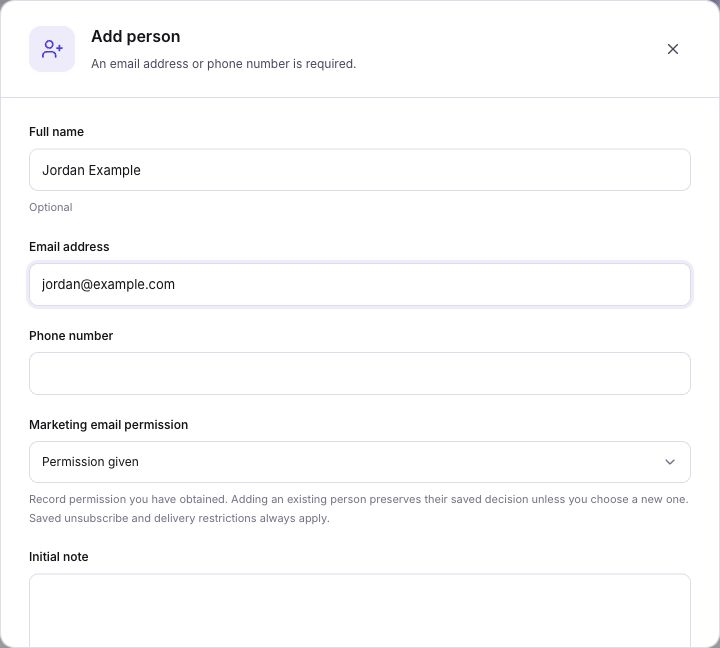
For this example, the initial note could say: “Asked for a quote to repair a leaking kitchen tap. Prefers a call after 3 p.m.” That gives a teammate a useful action without a long story.
Select Add person to save. Search for the contact again and open the record to check the result. Adding an existing person preserves their saved permission decision unless you choose a new one. Existing unsubscribes and delivery restrictions still apply.
For a larger list, Import people provides a separate CSV import flow. Review its mapping and results rather than adding every contact by hand.
3. Update details and add useful notes
In the person's record, use the contact edit control to open Edit contact details. Correct the name, email, or phone number, then select Save details. Reopen the record to confirm the saved values.
Use Add note to record something your team needs later. For example: “Called Jordan. Sent the quote. Waiting for a decision.” Keep facts separate from assumptions, and avoid copying private information that does not help with the job.
Review the activity list to see the saved note alongside available customer events. If your team uses the Follow-up controls, set the relevant date and check the follow-ups due view when planning the day's calls.
4. Organize people with groups and stages
A group collects people for a clear purpose, such as “Repair enquiries.” A stage records progress within that group, such as “New enquiry,” “Quote sent,” or “Completed.” A person can belong to more than one group.
Open Groups to review existing groups or select New group. Give a new group a clear name and review how people will join before choosing Create group. A manually managed group suits a simple list you control; conditions can manage membership from saved facts.
On a person's record, use Groups & stages → Manage to review or change their groups. Choose the appropriate Current stage for a group that has stages. Confirm the result in the record and in the group's people list.
For Jordan, use the Repair enquiries group and move from New enquiry to Quote sent after sending the quote. Review active group and stage rules before changing membership or progress. Those changes can trigger configured actions, including email rules.
5. Check email permission separately
A person being in People CRM or in a group does not, by itself, mean you should email them. Check their marketing email permission and any delivery restrictions before choosing a campaign audience.
Permission given is selected for a new person in the add form. Record the customer's actual decision. Saving a permission choice does not clear an existing unsubscribe, bounce, spam report, or manual block.
If you want to send an update, open Emails and use the people picker or saved group. Review the eligible recipients there. Adding a person to a plain group is different from starting a campaign; active group rules may have their own actions.
6. Check your saved work
Return to the people list and search for Jordan again. Confirm the contact details, note, group, stage, and follow-up date you intended to save. Read any error shown by an action rather than assuming it completed because a dialog closed.
People CRM uses separate actions for contact details, notes, and membership. Finish each action using its displayed control. If a leave warning appears, cancel it to finish saving, or discard only the unsaved edits you no longer need.
Common problems
- The add form will not submit: enter a valid email address or phone number. A name alone is not enough.
- A customer is not in the list: clear group and stage filters, search by their contact information, and check hidden records.
- An email is unavailable: inspect the permission or restriction reason. Do not create another contact to work around an unsubscribe.
- A group action did something unexpected: review that group's active rules and stage rules before making another membership change.
Finished: your team can find the customer, read the saved enquiry, see its current progress, and identify the next follow-up.