
How to review and restore website history
Restore an earlier website version, check it in the editor, and choose when visitors see it.
Use History when you want your website files to match an earlier saved version. For example, you changed your homepage layout and now want to return to the version with your original service list and quote button.
A restore changes your working copy and adds a new history entry. It does not change the published website until you review the result and choose Publish.
Before you start
Select the correct site in your workspace. Administrators and editors can restore website versions. Viewers can read History but cannot restore.
Finish or discard any unsaved form edits first. History contains saved website versions, not every character you typed. Wait for an active Agent task to finish before restoring, so the restore does not compete with work already in progress.
Restoring applies to the website version as a whole. It can replace changes on several pages, not just the section you dislike. If you only want to change one heading or button, a targeted edit may be the better choice.
1. Open History
In the workspace sidebar, go to Website → History. The Website versions list shows saved edits, their dates, and available details about who made them.
Read the version descriptions and times. A recent entry might say that the homepage layout changed; an earlier one might describe the service list you want to bring back. Scroll to load older entries where your plan allows it.
2. Understand the version labels
Staging marks the working copy used by the editor. Production marks the published website visitors see. One entry can have both labels when the two versions match.
An entry above or below the published version is not automatically live. Use the labels rather than assuming that the newest saved edit is the public website.
If your published version is already the version you want, restoring it still changes the working copy. Review the editor afterward before deciding whether any further publishing is necessary.
3. Check how far back you can browse
The available history window depends on your plan:
- Free: 2 days.
- Starter: 7 days.
- Growth: 30 days.
- Scale: 90 days.
- Enterprise: full available history.
History also keeps the current working and published versions reachable when they are older than the normal window. If you reach the plan limit, the page explains the available period and may offer a route to Usage & plan.
A plan window does not mean Frontpage saved a version every minute. Choose from the versions that actually appear. If the desired edit is not available, ask the Agent for a specific change instead of restoring an unrelated version.
4. Restore the selected version
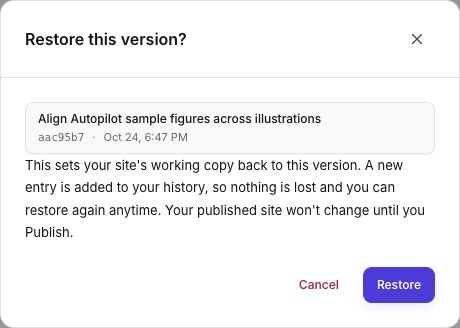
On the entry you want, choose Restore to this point. Read the Restore this version? dialog. Check the description and date again, then choose Restore if they match your intent.
Cancel if you chose the wrong version. After a successful request, History shows Restore accepted with a short reference. The restore creates a new entry; it does not erase every later saved version.
Acceptance is not proof that the rebuilt website is ready. Choose Open site editor, check its build status, and wait for the restored working copy to be ready to review.
5. Review the restored website
For the homepage example, check that the service list and quote button are back. Also inspect the other pages that changed after the selected version. A full website restore can bring back their earlier text and layouts too.
Check images, navigation links, forms, and phone-sized layouts. Restored files use their saved image references; confirm that the images still load. A form’s page layout and its saved business settings are separate, so inspect both if the restored page contains a form.
If the build fails or a needed image is missing, keep the published website as it is. Read the displayed error and ask for help or make the required correction before publishing.
6. Publish when ready
Choose Publish in the site editor when you want the reviewed version to become public. Wait for confirmation, then open the public website and check the same pages there.
Restoring alone is not an emergency shortcut that changes the live site immediately. The review and publishing step still applies. If you restore another available version afterward, review that working copy and publish separately again.
What a website restore does not change
Rewind restores website files, including page text and layouts. It does not roll back orders, payments, form submissions, People CRM records, or other saved business records. It cannot undo a sent email or reverse a payment.
It also does not recover unsaved text you discarded. Earlier saved website versions remain available within the applicable history window. This website history is separate from infrastructure backups and any record-specific history shown elsewhere in Frontpage.
Common problems
- Restore is unavailable: check your role and whether you selected the version already used by the working copy.
- An active Agent task blocks the restore: wait for it to finish, refresh History, and check your target again.
- You cannot find an older edit: check the displayed plan window and load the available older entries. Do not assume an unavailable version can be restored.
- The editor changed but the public site did not: review the ready working copy and publish it. Check the public address separately from the editor.
Check your result: the intended website version appears in the editor, its pages and images work, and the public site matches it after publishing. Your customer and payment records remain intact.
Frequently asked questions
Will restoring a website version immediately change the live site?
No. Restore updates your working copy and adds a history entry. Review the result, then publish when you want visitors to see it.
Can I use Rewind to restore just one section?
Rewind restores the saved website version as a whole. Ask for a targeted edit if you only need to change one heading, button, or section.
Does restoring a website undo orders, emails, or customer records?
No. Rewind restores website files. It does not roll back business records or actions already taken outside the website draft.