
You already have a website in Frontpage. Start with one small change so you can see how editing works before taking on a larger update.
1. Open your site editor
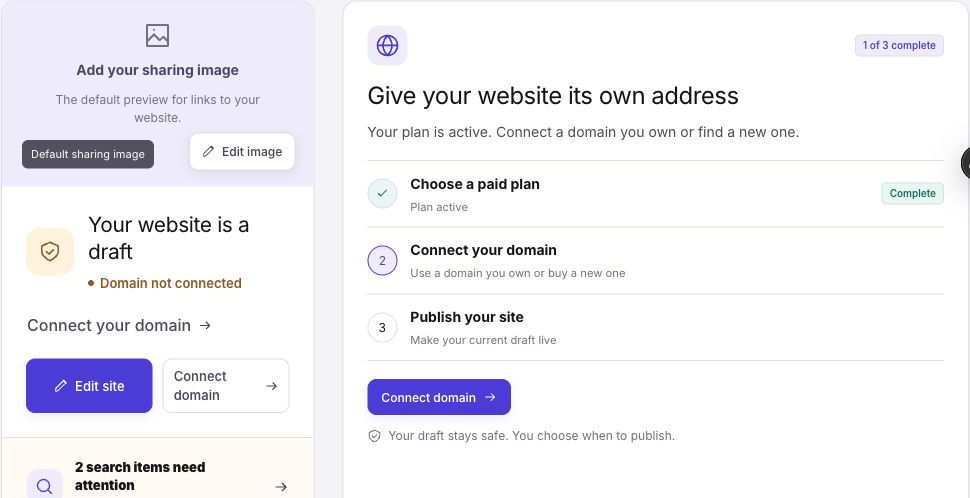
Choose your website in the workspace, then select Edit site on Overview. Open the page you want to change.
2. Ask for one clear change
Tell Frontpage which page or section to change and what you want the result to be. Add anything you want it to keep.
On the home page, change the main headline to “Home cleaning that fits your schedule.” Keep the photos, layout, and other text as they are.
Here are two more examples you can adapt:
- Photo: “Use the photo I attached in the home page’s main banner. Keep the headline and button.”
- Section: “On the Services page, add a short section about weekly cleaning below the service list. Use the same style as the rest of the page.”
For a photo change, attach the image to your request using the editor’s attachment control. If you want an exact result, provide the words, image, or details to use.
3. Review the preview
Wait for Frontpage to finish the change and update the preview. Check the right page and look at both the desktop and mobile layouts. If you want a small adjustment, say what to keep and what to change.
Keep that headline. Make the paragraph below it shorter, and leave the rest of the page alone.
4. Decide when to publish
Editing your draft does not update your published custom-domain website. You can keep working and return later. When the result is ready, use Publish in the editor. Your site plan, domain connection, and completed build must be ready first.
For a site you have not published yet, Overview also shows Publish your site as the third setup step once your plan and domain are ready.
If the result is not what you meant
Describe the specific part to fix rather than repeating the whole request. If the preview is still building or reports an error, wait for it to finish or ask Frontpage to resolve the error before publishing.
You’re done when: the preview shows your intended change. Publish only when you want that version on your live website.