
How to schedule a routine
Schedule a repeat task for your Agent, then check what ran and what it actually finished.
A routine starts an Agent task at the times you choose. Use one for repeat work such as reviewing website traffic or preparing a regular content draft. You save the instructions once, then check the result after each run.
This guide creates a weekly website traffic review for Monday at 8:00 AM in America/Chicago. The example asks for a summary and suggestions only. It does not ask the Agent to send customer emails or change the website.
Before you start
Routines and the Frontpage CLI are available on every plan. Administrators and editors can create and manage routines. Viewers can read them. Each site can save 3 routines on Free, 5 on Starter, 10 on Growth, 15 on Scale, and 10 on Enterprise. Active and paused routines both count. Runs use the site’s AI budget.
Choose a task the Agent can perform with your site’s supported tools. State the scope and the result you want. A routine is a schedule for the Agent, not a separate system that gains new permissions or a promise that a task will succeed every time.
1. Open Routines and create a task
Select the correct site in your workspace. Under Business, open Routines, then choose New routine.
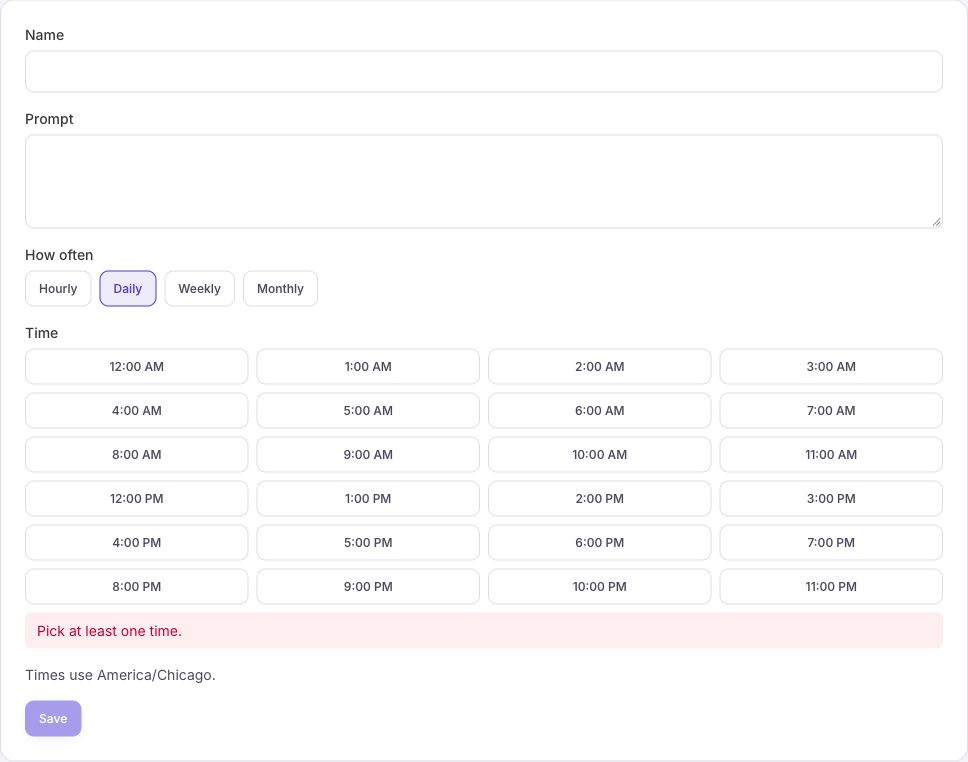
Set Name to “Weekly website review.” In Prompt, describe the work:
Review my website analytics for the past seven days. Summarize visitors, the most visited pages, and available tracked contact actions. Suggest up to three useful improvements. If there is not enough data, say so. Report the findings in this conversation. Do not change files, publish, or send emails.
Use an explicit instruction when you want review rather than action. If you later schedule a website edit or an email, its normal permissions, setup, allowances, and final-action rules still apply. A routine does not run every time a customer submits a form; use form confirmation settings for that separate task.
2. Choose how often it runs
Under How often, choose Weekly. In Days, select Monday. Under Time, select 8:00 AM. Read the schedule sentence before saving.
You can select several days and times on the same routine. For example, Tuesday and Thursday at 8:00 AM and 4:00 PM means four runs each week. Those choices remain one routine, rather than four separate rows.
The other options are Hourly, Daily, and Monthly. Times use whole hours. Hourly runs at the top of the hour; monthly offers dates from the 1st through the 28th so every selected date exists in every month.
3. Check the time zone
Check the Times use line. It should show the time zone you intend, such as America/Chicago. The form normally starts with your browser’s time zone. If it cannot determine one, choose a valid zone in the Timezone field.
If you need a different zone from the one shown, ask the Agent to set the routine’s time zone explicitly. For example: “Set Weekly website review to Monday at 8:00 AM, America/Chicago. Keep its prompt unchanged.” Check the saved schedule afterward.
Local time follows that zone’s daylight-saving rules. A scheduled local hour that does not exist during the spring clock change moves to the next valid time. This is a task start time, not a completion deadline. A scheduled start can occur up to 15 minutes later, and the work takes additional time.
4. Save and check the routine
Choose Save. Saving a new routine turns its schedule on. Return to the list and confirm the name, schedule sentence, Active status, and next run time. Open Edit to check the full prompt if needed.
Saving a routine does not publish your website. It saves the task and its schedule. If you are setting up a trial and do not want scheduled work to continue, choose Pause after saving.
5. Run once and inspect the result
Use Run when you are ready to start the saved prompt once. It works for an active or paused routine. It does not change the saved schedule, resume a paused routine, or move its next scheduled time.
Check the routine’s history table. Ran now records a manual start, and Ran on schedule records a scheduled start. Didn’t start and Skipped need attention; read any reason shown.
These entries record whether the task started, not whether the Agent completed every action. Review its response in the Agent conversation or prompt history. For this example, look for the date range, available traffic figures, and suggestions. A report that says there is not enough data is more useful than invented numbers.
If the run fails or its outcome is unclear, inspect the task result before starting another run. Repeating a task that sends messages or changes records could repeat that action.
6. Edit, pause, or remove future runs
Choose Edit to change the name, prompt, or schedule, then Save. Reopen it to confirm the new instructions. Choose Pause to stop future scheduled starts, or Resume when you want scheduling to continue.
Pausing or deleting a routine does not cancel an Agent task already queued or running. Check that task separately. To remove a routine, open its editor, choose Delete, and review the confirmation.
Common problems
- Save is disabled: enter a name and prompt, and choose every required day, time, and time zone. Read the missing-choice message.
- The time looks wrong: compare the saved zone with the zone you intended. Do not assume that a schedule uses the same zone as someone else’s computer.
- A routine has not run: check Active versus Paused, the next time, plan access, AI usage, and any history reason. A scheduled start is not immediate.
- The history says it ran but the report is missing: inspect the Agent task. The history records a start, and the task can still fail or need attention afterward.
Check your result: the saved prompt is correct, the schedule uses the intended time zone, and a test run produces a result you can inspect. Pause a temporary test when you finish.
Frequently asked questions
Can I test a routine before waiting for its next scheduled run?
Yes. Use Run once and inspect the result. Check that the task stayed within the scope you gave it.
Which time zone does a Frontpage routine use?
Check the time zone saved with the routine when you choose the schedule. Confirm the next run time after saving.
Can I pause a routine without deleting its instructions?
Yes. Pause it to stop future scheduled runs while keeping the saved instructions. Check the run history separately for work that already started.