
How to run a website audit
Run a Frontpage Website Audit on a public address, read the findings, and choose one practical improvement.
Use a public website you can open in a private browser window. Start with the main address and note any important pages you want to check separately. A website behind a password or a private staging link will have limited or no coverage.
1. Start the audit
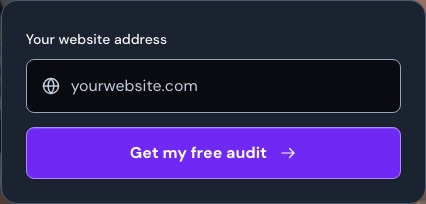
Open the Frontpage Website Audit form. Enter the website address under Your website address and choose Get my free audit. Keep the result page open while the audit runs. Frontpage may ask you to sign in or create an account to open the full report.
2. Read the score and coverage
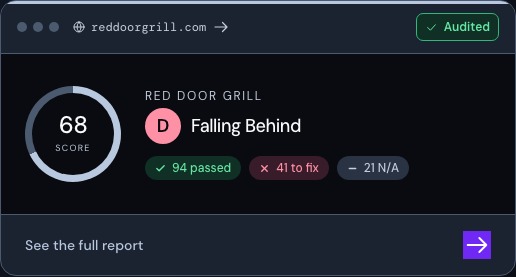
Read the overall score, the categories, and the list of findings together. An audit checks what it could reach. Frontpage may discover and check selected public pages linked from the home page. Use the coverage shown in the report before drawing a conclusion about a page that may not have been scanned.
3. Choose one change to make
Pick a finding your team can check on the actual site. If the report says a main contact path is hard to use on a phone, open that page on a phone and try the same task. If the issue is a missing page title, update the page’s search settings. If it is the placement of a button or section, review and make a targeted edit in Canvas.
4. Check the change after it goes live
Publish the fix if you own or manage the website, then open its public address and repeat the task that exposed the problem. Run another audit when available and compare the same checks and coverage. Keep track of what you changed so you can interpret any difference.
If the audit stops or covers fewer pages than expected
Confirm the website opens publicly and redirects to the intended page. Try again later if the tool reports a temporary limit. If it reached only part of the site, read the coverage and check the missing pages separately.
Frequently asked questions
Can I audit a site hosted outside Frontpage?
Yes. Start with a supported public website address.
Do I need an account to start?
You can enter a public address on the audit page. Sign in or create a free account when prompted to open the full report.
Does the score represent every page on my site?
No. Read the report’s coverage to see which pages and checks it could evaluate.
Does the audit edit my website?
The audit reports findings. You choose which changes to make and publish.