
Hosting and publishing: Put your website live without a separate host
Review your website in preview, then publish the ready version with Frontpage hosting and HTTPS.
A service business finishes a new page for its spring maintenance offer. It can check the words, photos, and quote button in preview before customers see the page. When it is ready, the business publishes from Frontpage and checks the public address.
Review the working version
Check the page on a laptop and a phone. Use the links as a customer would, and verify any offer details with your team. Learn how to tell a working version from the live site when you are reviewing changes with someone else.
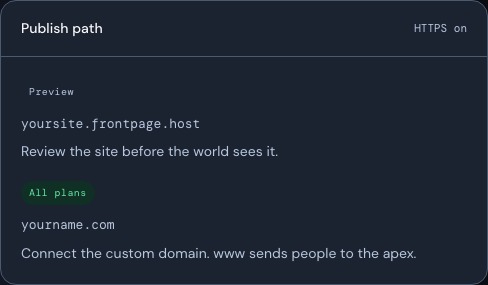
Put the ready site on its public address
Frontpage provides website hosting with each plan. If you use your own address, connect and verify your domain so visitors can open the secure website. Domain registration and renewal are separate from the included hosting.
Publish and verify
Open Publish after the ready build finishes, confirm the public address, and wait for the result. Then open the public page in a private window and test its main link. Use the step-by-step Frontpage publishing guide the first time or when you are checking a failed build.
Frequently asked questions
Do I need to buy separate hosting?
Frontpage hosts your published site. A domain registration or renewal is a separate cost.
Is HTTPS included?
Frontpage provides HTTPS for a ready site address. Complete the domain checks before relying on it.
Can I check my page before publishing?
Yes. Review the ready preview, including its phone layout and links, before publishing.
Do plans include the same amount of bandwidth?
No. Check the current plan details and your workspace usage for the allowance that applies to your site.