
Rewind: Restore an earlier website version
Use Rewind to bring back an earlier saved website version, review it in the editor, and choose when to publish it.
Suppose you redesigned your homepage and want the old service list and quote button back. Open History and look for the saved version before the redesign. Check the entry date and description first. One restore can replace changes across the website, so consider what you want to keep from the newer version.
Find the version you want
In the workspace, open Website → History. The Website versions list shows saved changes and their dates. Staging marks the editor’s working copy. Production marks what visitors can see. The same entry can have both labels. Follow the steps to review and restore website history for the current plan windows and the restore confirmation.
Review the restore before visitors see it
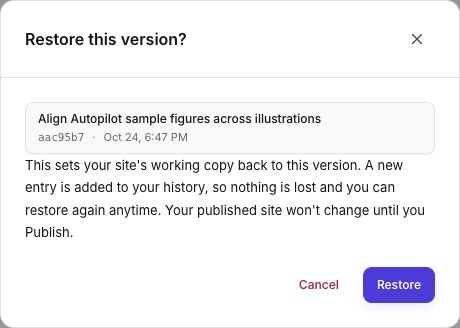
Admins and editors can select Restore to this point. The dialog identifies the selected version and explains what happens. After Frontpage accepts the restore, wait for the working copy to build and check the pages you care about. Use the public site and editor preview separately to see which version your customers can open.
Open the restored homepage and test its links and form on a phone. If your team wants only the old button and wants to keep the new layout, make a focused edit in Canvas. That keeps your review centered on the change you actually need.
Know what website history covers
Rewind restores saved website files and their references. It does not change orders, payments, form submissions, People CRM records, or sent email. Check that restored images still load, and review any separate business settings a page relies on. Choose Publish once the restored website is ready.
Frequently asked questions
Does Rewind change the live website immediately?
Restoring creates a new working version. Review it and choose Publish to make it public.
Can a site viewer restore an earlier version?
Viewers can read history. An editor or admin can restore a version.
Does restoring erase newer history entries?
The restore creates its own entry. It does not erase the subsequent saved history.
How far back can I go?
The history window depends on your plan and the versions Frontpage saved. Use History to see which versions are available.