
Store: Sell products on your website
Show what you sell, let customers choose the right option, and manage orders beside your website.
A customer wants a cotton cap from your shop. They need a clear photo, the right size, a price, and a way to buy it. You need to know which size sold and whether it needs delivery or pickup.
Frontpage Store puts those tasks in the same workspace as your website. Create your products, set their prices and stock, and ask the Agent to build a store page that fits your business.
Cotton cap
Everyday cotton cap with an adjustable strap.
Make each product easy to understand
Add a name, description, and photos that show the actual item. Put the most useful information first: what the product is, what is included, and what the buyer should know before ordering.
Ask your Agent to organize the shop around what customers need. For example: “Build a store page for our cotton caps. Show product photos, size choices, and the delivery details. Match the rest of our website.”
The Agent can help build the page and manage supported catalog details. You still choose the real product facts, images, prices, and availability. Review the result before publishing the website layout.
Offer sizes and colors with the right stock
Use variants when an item has choices such as Small and Large. Each variant can have its own price and tracked stock. A buyer’s chosen size then refers to the right item, rather than a note your team must interpret later.
Turn on Track stock when you have a limited quantity. A tracked quantity of zero means sold out. With tracking off, the product has no local stock limit. Use Available for sale to stop new sales while keeping the product in your catalog.
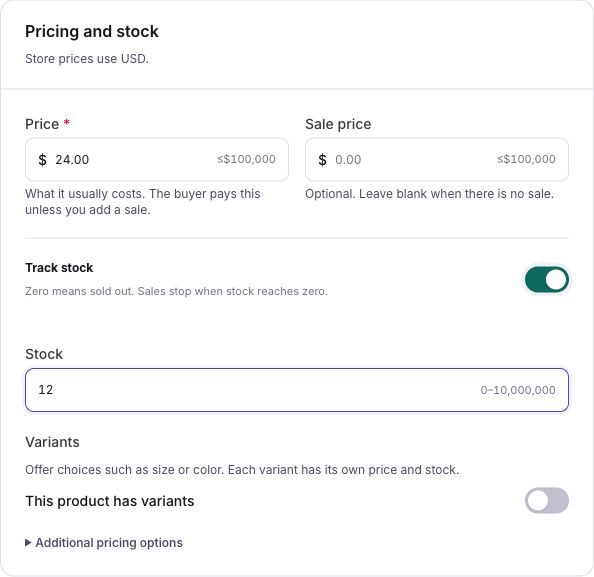
For the cotton cap, you might track five Small and eight Large. When you add more stock, update the correct variant. The variants and stock guide walks through the controls.
Give customers a clear way to buy
Use cart checkout when customers need to buy several items together. Supported direct Pay now links provide another purchase path. Check that your website’s buttons use the checkout method you intend.
A site admin connects Stripe for online payments. Store uses the connected account’s currency. Complete the payment setup and resolve any readiness message before inviting customers to buy.
For physical products, choose the delivery or pickup methods your business supports. Check the order shipping charge, any extra shipping for a particular product, and the applicable tax settings. Customers should see the right total and instructions before paying.
Customer-choice fields can collect details such as a short gift message. Use variants for choices that affect price or stock. A customer-choice answer does not change the price.
Keep order details with your products
Open Business → Store → Orders to review purchases and their delivery or pickup details. Your team can check what the customer bought without matching a separate email to a handwritten product list.
Check the order and payment status before preparing it. A product added to a cart is not a completed payment. Follow your business’s process for packing, delivery, pickup, or any refund.
The same catalog can support a small clothing shop, a maker selling ceramics, or a business selling branded merchandise. Start with one product and a purchase path your team can manage well.
Save product data and publish website changes separately
Saving in Store keeps the product details. Catalog changes can affect an existing live Store without a new website publish. Do not use an available product as a private draft.
Adding or changing the website’s Store page is a separate website edit. Review the preview and publish when the layout is ready. Check the live product, options, links, and checkout after the change.
Store is available on every plan, including Free. Editors and admins can manage products. A site admin connects Stripe and finishes setup before customers can pay. If you sell a service rather than a product, Payments also provides service-payment options.
Start with one product
Put your shop on your website.
Add the details, check the purchase path, and make it easy for customers to order.
Frequently asked questions
Can I sell the same product in different sizes in Frontpage Store?
Yes. Use variants for choices such as size or color. Each variant can have its own price and tracked stock.
Can I take a product off sale without deleting it?
Yes. Turn off Available for sale. The product stays in your catalog, but customers cannot start a new purchase of it.
Do product edits and website design changes publish together?
No. Save the product in Store. If you change the design of the store page, review that website draft and publish it separately.