
How to manage your plan and AI usage
See your current plan, check what your site has used, and review a plan change before you confirm it.
Check the site you want to manage
Open the site workspace and choose Usage & plan. Start with the plan name. If you manage more than one site, check the site switcher first. Usage and billing are tied to the site.
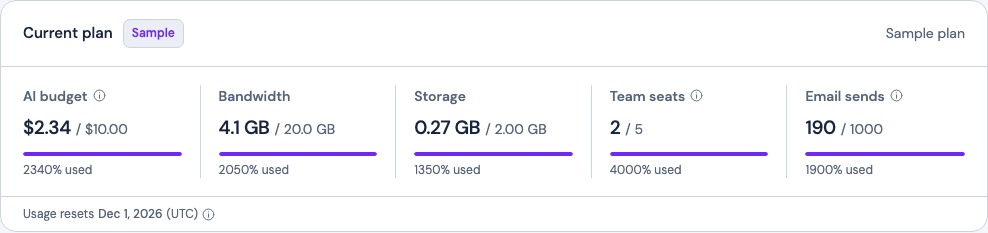
Read the usage cards
- AI budget shows how much of the current monthly allowance the site has used.
- Bandwidth and Email sends show monthly use when those cards apply to your plan.
- Storage and Team seats show what is in use now. They do not count down to a monthly reset.
Monthly usage resets on the first day of the month in UTC. Your billing renewal can fall on a different day. If your team is close to its seat limit, review who has access to the site. If sending is the issue, check your email delivery settings and limits.
Review a plan change
Use the plan controls if your role allows it. Compare current features and allowances before choosing. Review the price, billing interval, and when the change takes effect. A first paid subscription may take you to checkout. Return to Usage & plan and check the current plan or the scheduled change after confirming.
Frequently asked questions
Where do I check my Frontpage AI usage?
Open the site workspace and go to Usage & plan. The AI budget card shows the site's use against its current allowance.
When does Frontpage usage reset?
Monthly counters reset on the first of the month in UTC. Your subscription can renew on a different date.
Are storage and team seats monthly allowances?
They show what your site uses now. Storage changes when you add or remove files; seats change when you add or remove access.
How do I know when a plan change will take effect?
Review the effective date in the plan confirmation. After confirming, check the current plan or scheduled change in Usage & plan.