
How to manage sender settings, delivery status, and suppressions
Set who emails come from, check what happened to a send, and manage addresses that should stop receiving marketing emails.
Say you sent a store update and two people report that they didn’t get it. One had already unsubscribed. The other may have a typo in their address. Use Sent and Suppressions to check what happened before you decide what to do.
Before you start
Open the correct site and go to Customers → Emails. Use a site editor or admin account to change sender settings or manage suppressions. Campaigns and series are included on every plan and use your site’s monthly email allowance.
1. Set the sender details
If this is your first visit to Emails, complete the setup using a reply address your team checks and your business postal address. The sender name is optional. Choose Save & finish setup.
After setup, open Emails → Settings. Under Sender, check these fields and select Save settings.
- From name. The name people see in their inbox. Leave it blank to use your business name.
- Reply-to. The inbox that receives customers’ replies. Use an address your team monitors.
- Business postal address. The mailing address shown at the bottom of marketing emails. Include your country.
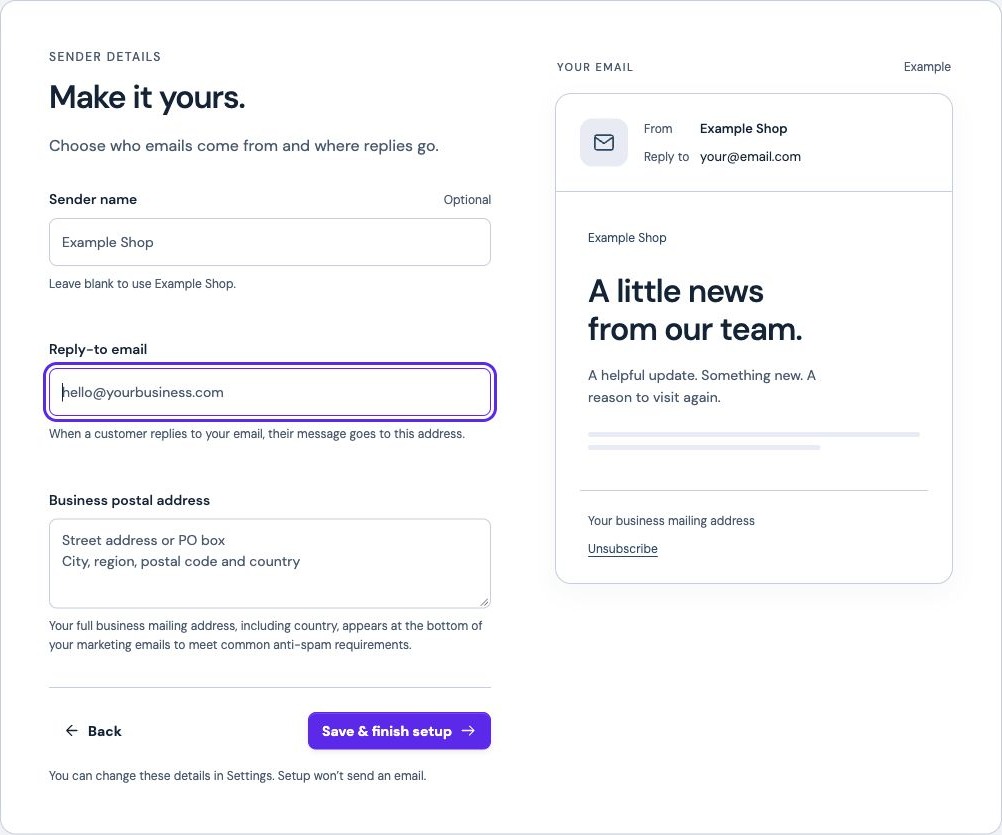
Changing these fields doesn’t send an email. If you want to check the result, send a test to yourself from the email editor and inspect the sender, reply address, and footer in your inbox.
2. Find the email in Sent
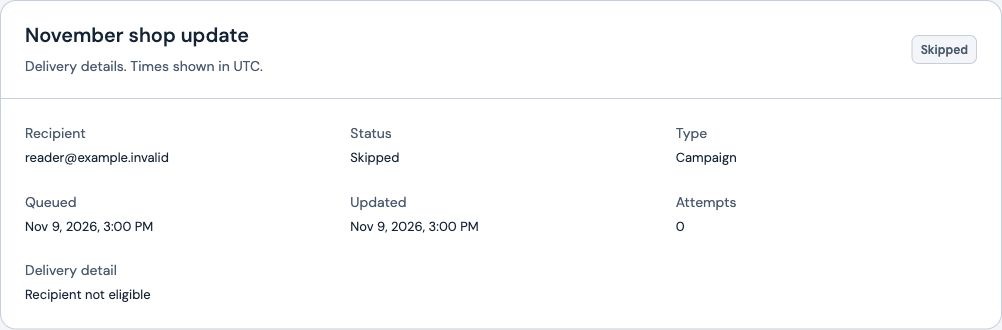
Open Sent. Search by recipient or subject. Use Status and Type to narrow the results, then open a row to see Delivery detail and Attempts. If a queued send has a scheduled retry, the details can also show Next sending check.
- Queued. Frontpage has recorded the send and is still processing it. Check again before sending a duplicate.
- Sent. The sending provider accepted the email. Frontpage has not yet recorded a delivery confirmation.
- Delivered. The recipient’s mail server accepted the message. That doesn’t tell you whether the person read it or whether it landed in spam.
- Skipped. Frontpage stopped the send. Read the delivery detail. If it says “Recipient not eligible,” check whether the person opted out or the address was blocked.
- Failed or Bounced. Check the delivery detail. Confirm the address with the customer if it looks wrong, then review their permission before sending again.
3. Check permission and the suppression list
Email permission is the person’s permission to receive marketing email. A suppression blocks a specific address from receiving marketing email from this site. A person can exist in People CRM and still be ineligible for a send. Check both when troubleshooting.
- Check SentFind the recipient and read Delivery detail.
- Check permissionConfirm the person can receive marketing email.
- Check SuppressionsLook up the address and read why it’s blocked.
In Emails → Settings → Suppressions, search for the address. Reasons can include Unsubscribed, Delivery failed, Reported as spam, or Added by your team.
To deliberately block an address, enter it in Email address and select Block marketing emails. This stops campaigns and series for the address and cancels its current series enrollments. Purchase receipts and support replies use their own delivery rules.
Use Remove only when the block should genuinely be lifted. Removing a suppression leaves the person’s email permission as it was and doesn’t resubscribe them or restart cancelled series. Honor an unsubscribe or spam complaint.
Common problems
- You can’t start a campaign. Check the sender’s postal address, the audience’s eligibility, and the site’s remaining email allowance.
- A test says Delivered but you can’t find it. Confirm the signed-in email address and check spam or filtered folders.
- There’s no row for the person. Clear the filters, confirm the campaign or series and the exact address, and check whether the person was eligible or whether a send was ever queued.
Check your result. Reopen Settings to verify the sender details, then open your test in Sent and read its delivery status.
Frequently asked questions
Does Delivered mean someone opened my Frontpage email?
No. Delivered means the recipient’s mail server accepted the message. It doesn’t confirm the person opened it or that it reached their inbox instead of spam.
What should I do if my Frontpage email is still queued?
Open the message in Sent and check Delivery detail and Attempts. If Frontpage shows a Next sending check, wait for that check before sending another copy.
Does removing a suppression resubscribe someone in Frontpage?
No. Removing a suppression leaves the person’s email permission as it was. It also doesn’t restart a canceled series enrollment.
Can I change my Frontpage reply address without sending an email?
Yes. Open Settings in Emails, change Reply-to under Sender, and save. If you want to check the new address, send a test to yourself from the email editor.