
How to review Growth Advisor suggestions
Find a useful website improvement, understand what will change, and decide whether to publish it.
Your service page explains what you do, but its quote button is hard to find. Growth Advisor can suggest a clearer place for it, explain the reason, and let you choose whether the Agent should make the change.
This guide shows how to review suggestions, provide any facts they need, and check the result. Accepting a suggestion starts work on your website. It is not the same as publishing that work.
Before you start
Growth Advisor is available on every plan, including Free. Open Growth → Growth Advisor in your site workspace with an editor or admin account. Viewers cannot use this screen.
Accepted suggestions use your site’s AI budget. The screen shows the available allowance for on-demand page evaluations. The site owner controls Automatic suggestions.
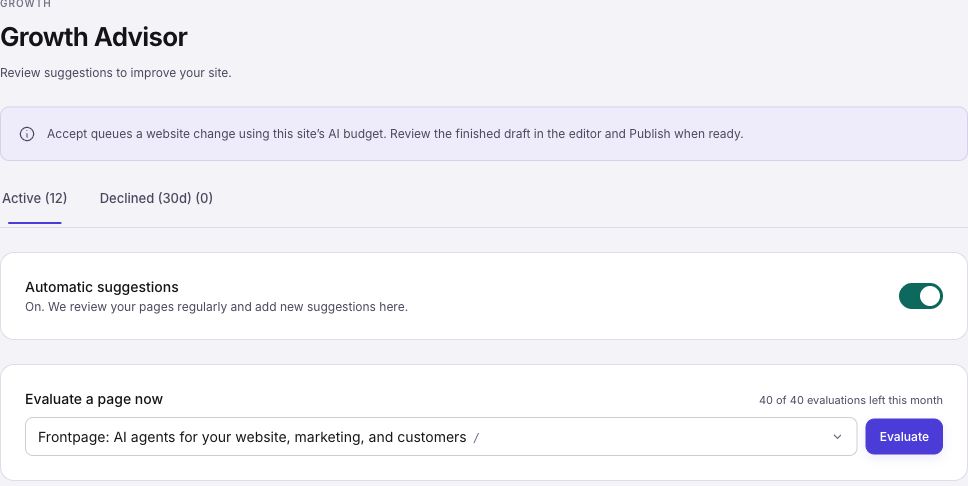
1. Open the active suggestions
Choose Active. Suggestions are grouped by the page they concern. Start with a page that matters to your business, such as your main service, contact, or product page.
Read the title, proposed change, and reason. Open that page too and check whether the problem still exists. A suggestion may refer to a page that your team has changed since the evaluation.
Use Technical details when you want the supporting detail. It can help you understand what the evaluation found before you decide to act.
2. Decide whether the change helps
Ask one practical question: will this help a visitor understand the offer or complete the next step? A clear quote button may help a contractor’s service page. A delivery explanation may matter more on a shop’s product page.
Check business facts yourself. Do not add a price, customer total, guarantee, or privacy promise just because a suggestion asks for one. Use a true value or decline the idea.
Make the quote button easier to find
Place a clear “Request a quote” button beside the service details so visitors can contact you without searching the page.
- 1ReviewRead the change and its reason.
- 2AcceptThe Agent prepares a website change.
- 3Preview and publishCheck the result before it goes live.
3. Add the facts or instructions it needs
A suggestion marked Needs your input includes a field for the missing information. Complete that field before you accept it. For example, a suggestion to show a starting price needs your real starting price.
Select + Add a note if the Agent needs another instruction. Be specific: “Use our existing Request a quote button. Keep the phone number visible.” A note is useful when it changes how the Agent should carry out the suggestion.
Read the completed request once more. Keep it focused on the change you actually want.
4. Accept or decline the suggestion
Select Accept to queue the website change. The card shows progress while the Agent works. Wait for the result rather than submitting the same request again.
Select Decline when the change is not right for your business. The Declined (30d) tab shows recent declines. A decline is more than closing the card: it suppresses that suggestion from being offered again, even after it leaves the recent list.
When several suggestions are ready, Select lets you choose a group. Accept all applies to eligible suggestions, not cards waiting for required input. For a first review, accept one clear improvement so you can check the result before taking on more.
5. Review the finished website change
Open the website editor when the Agent finishes. Inspect the affected page in the preview. For the quote-button example, confirm that the button is easy to find, its label makes sense, and it opens the right form or contact page.
Check the page on a phone as well as a computer. Read nearby text, test links, and make sure the change did not hide another useful action. Ask the Agent for a focused correction if needed.
Select Publish when the website version is ready for visitors. Publishing releases the current ready website draft, which can include other pending website edits. Check those too. Accepting a Growth Advisor suggestion alone does not publish it.
6. Request a page evaluation when you need one
Under Evaluate a page now, choose a page and select Evaluate. This uses the allowance shown beside the control. Keep the page selected while the evaluation runs and read any result or error it returns.
An evaluation may find no useful new suggestion. It does not change the page by itself. Review any suggestions it produces in Active before accepting them.
The site owner can turn Automatic suggestions on or off. This controls recurring reviews. It does not automatically accept suggestions and is separate from Autopilot.
Common problems
- Accept is disabled: complete the required input and read the message beside the card.
- Evaluate is unavailable: check the remaining allowance, whether an evaluation is already running, and any displayed plan or budget message.
- The evaluation could not read the page: check the page address and preview. Resolve the displayed loading or access problem before trying again.
- An accepted change failed: read the failure message. Use Retry after resolving the cause, then inspect the finished draft.
Check your result: the public page shows the change you approved and its links work. Use Analytics to watch what visitors do over time rather than assuming the change guarantees more enquiries.
Frequently asked questions
Does accepting a Growth Advisor suggestion publish my website?
No. Accepting starts work on a website draft. Review the finished change and publish it separately when it is ready.
What if a Growth Advisor suggestion needs a fact about my business?
Give the Agent the exact fact or instruction before it starts, such as your correct opening hours. Decline the suggestion if it no longer fits.
Can I request advice for one page?
Use the page evaluation option when it is available and select the page you want reviewed. Check the allowance shown in your workspace.