
Introducing Bookings
Let customers choose a time on your website. Manage appointments, spaces, and stays in the same workspace.
A customer wants a consultation. They should be able to see when you are free, choose a time, and tell you what they need. You should be able to check the request without searching through emails.
Frontpage Bookings brings that process to your website. Create the booking types you offer, set your availability, and let customers book from a form that matches your site.
Choose your time.
Bookings is included on Starter, Growth, Scale and Enterprise. Connect Google Calendar or a calendar link (iCal), or use your booking hours without an external calendar. Outlook setup is not available yet.
Let customers choose an available time
Offer a 30-minute introductory call, an hour with an accountant, or a longer home visit. Each appointment type sets its own length and the times it can start. Add preparation, travel, or cleanup time before and after the appointment.
For example, a design studio could offer a short consultation that starts every half hour. The customer sees available times, explains the project, and reviews the request. They do not have to email three different dates and wait for a reply.
Frontpage checks the assigned people and spaces before it accepts the booking. Customers verify their email as part of the booking process.
Keep your bookings in one calendar
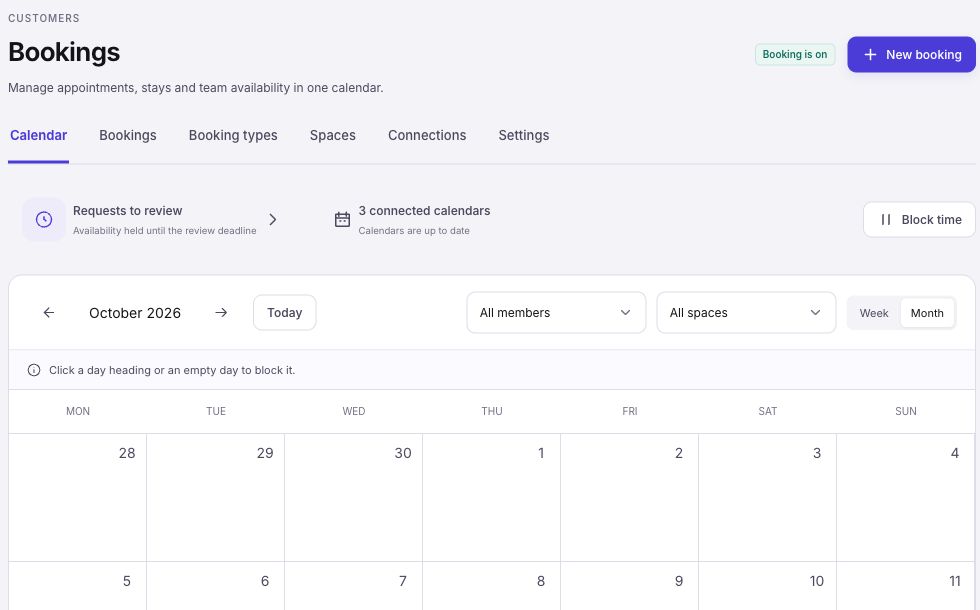
Open Customers → Bookings to see appointments, stays, pending requests, and blocked time. Switch between week and month views, or filter by a team member or space.
Use the calendar to reserve a lunch break, a day off, or a regular closure. A blocked time stops customers from booking the affected member or space. Repeating blocks help keep regular unavailable hours out of your schedule.
Choose when bookings need approval
A straightforward consultation can confirm automatically. A visit that needs a closer look can require approval. Choose the policy for each booking type.
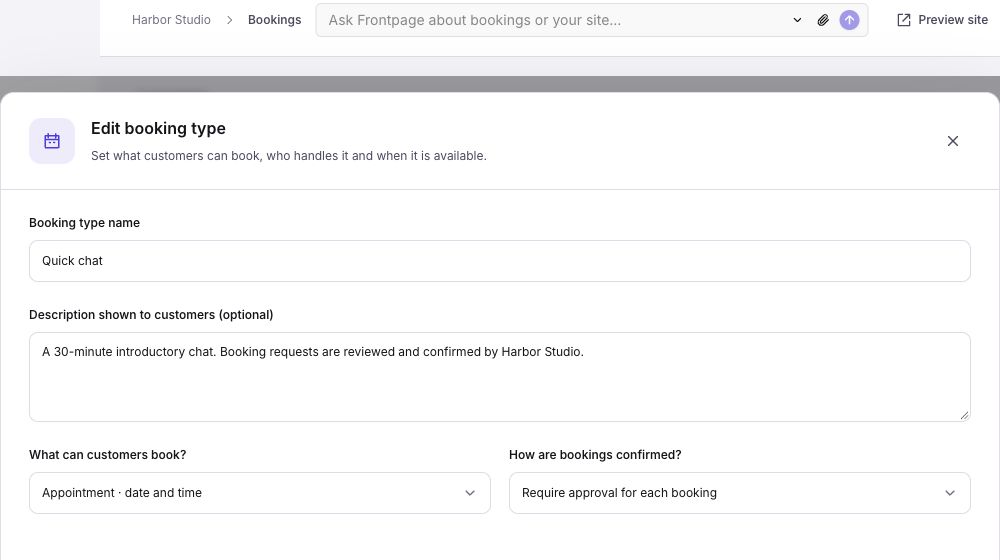
A pending request holds its assigned availability until you accept it, decline it, or its approval deadline expires. Open the booking to review the dates and customer answers. The customer gets an update when you confirm or decline.
This gives customers a clear answer about what happens next. A request stays a request until you approve it. An email link opens the booking for review; opening it does not accept the request.
Add rooms, properties, and stays
Consultation room
Reserved with the appointment.
Some bookings need more than a free person. Add a consultation room, studio, or property in Spaces. An appointment can require both a team member and a space, so both must be available.
For overnight bookings, use a stay type. Guests choose arrival and departure dates. You set the shortest and longest stay, check-in and checkout times, and whether each request needs approval.
A guest cottage could offer stays of two to fourteen nights, with a question about arrival time. A consultant could use an appointment type and ask what the customer wants to discuss. Each type has its own questions.
Use your calendar, with private details kept private
You can start with Frontpage’s calendar alone. Connect your own Google Calendar account, choose the calendar, and decide whether confirmed Frontpage bookings should appear there.
Busy time helps determine availability. Other team members do not see the titles, descriptions, or attendees from your private calendar. A supported iCal calendar-link import brings in busy dates in one direction; it does not send Frontpage bookings back.
Outside calendars refresh in the background rather than instantly. Keep that in mind when you take bookings in several places.
Add the booking form to your website
Ask the Frontpage Agent to add your saved booking type to a page and match your design. For example: “Add my 30-minute consultation to the contact page. Let customers choose an available time and ask what they need help with.”
The default calendar shows available dates and times, with a clear selection and a highlighted date range for stays. Customers review their details, verify their email and see the result in one dialog. It uses a compact window on desktop and the full screen on mobile. They can close it or go Back without losing their answers. Ask the agent to match the calendar, questions, dialog, final message and management page to your site. These defaults are starting points; the agent can also create a different picker design using the same booking rules.
Review the website preview before publishing. Check the time zone, the questions, the required email check, and the final confirmation or pending message. Bookings does not collect payments or deposits; Payments remains a separate feature.
Try Bookings
On Starter and above, open Customers → Bookings to set up your first service. Google Calendar and iCal links are available. Outlook setup is not available yet.
Start with one service, one clear set of hours, and the questions you actually need. Follow the Bookings setup guide to add spaces, connect an available calendar, and take your first booking.