
Team and access: Work together with clear permissions
Give each teammate access to the website they work on and choose what they can do there.
A repair company has three people working on its website. The owner manages the site and team, a colleague updates service pages, and a reviewer checks the result. Frontpage lets each person use their own account. A site admin selects the role for that website.
Give people access for their work
Use Viewer for someone who only needs to review. Editor can change website content and publish, so use it when that person is allowed to make changes public. Admin can manage team access and other site settings. Check billing permissions separately when the work involves the subscription. Review how saved changes become public before choosing Editor for someone new.
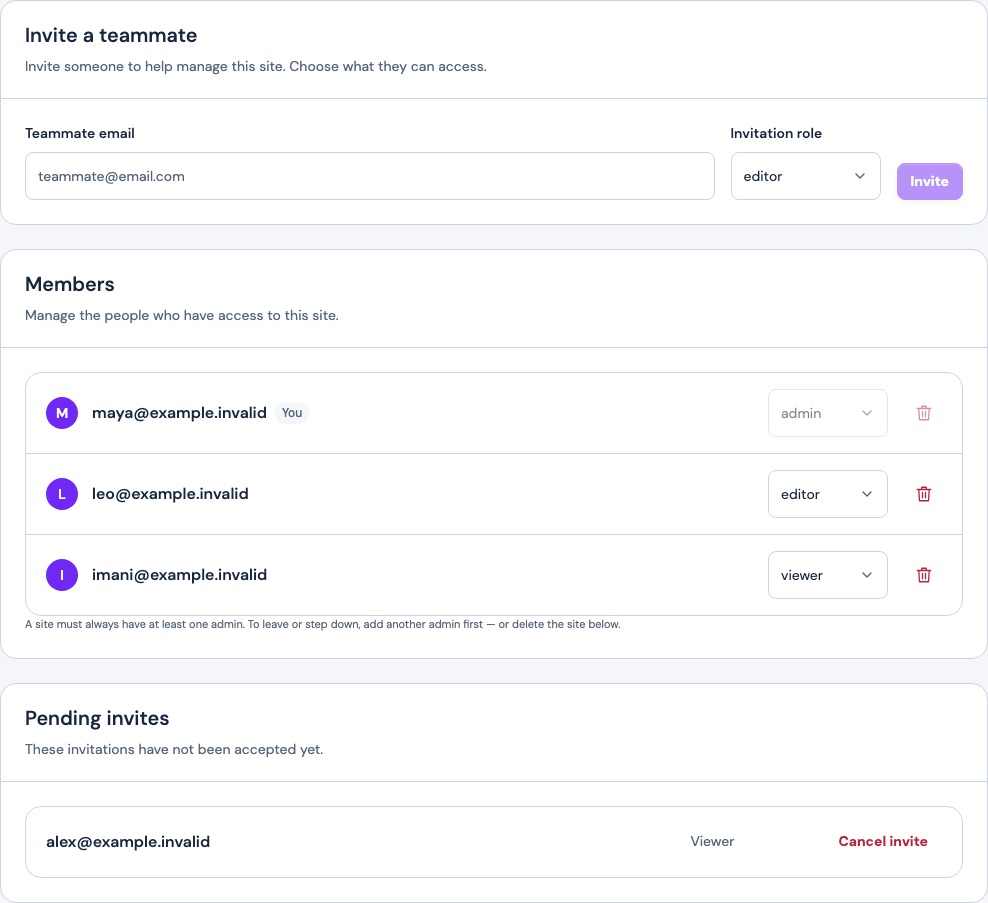
Check seats and invitations
Open Site settings → Team & access and confirm that you selected the correct site. Members and pending invitations count toward the site’s seat limit. Check the page before sending another invitation. An existing Frontpage account can be added immediately. Someone who has not joined Frontpage receives a pending invitation to accept. Follow the team invitation and role checks.
Review access when the work changes
Use Members to check or change a role or remove a person who no longer needs the site. Cancel unused invitations under Pending invites. Keep at least one trusted admin. Changes apply to the selected site. Update your own name or business phone in account settings if your personal details also need a change.
Frequently asked questions
Can an Editor publish website changes?
Yes. Use Viewer for a teammate who should only review.
Does one invitation cover every site?
It applies to the selected website. Invite the person separately where they need access.
Does a pending invitation use a seat?
Yes. Review pending invitations when checking available seats.
Can I remove the last admin?
Frontpage requires at least one admin. Arrange a replacement before the current admin leaves.