
How to manage your Frontpage account settings
Update the name and business phone on your Frontpage account, and check the email used to sign in.
Use Account settings for details that belong to you across sites. For example, update your business phone after changing numbers. If you want to change a phone number shown to customers on your site, check the site’s brand and contact details or edit the relevant website page separately.
1. Open Account settings
In the workspace, open the account menu and choose Account settings. Find Contact details. Check Sign-in email first to make sure you are looking at the intended account. This email is read-only on the page.
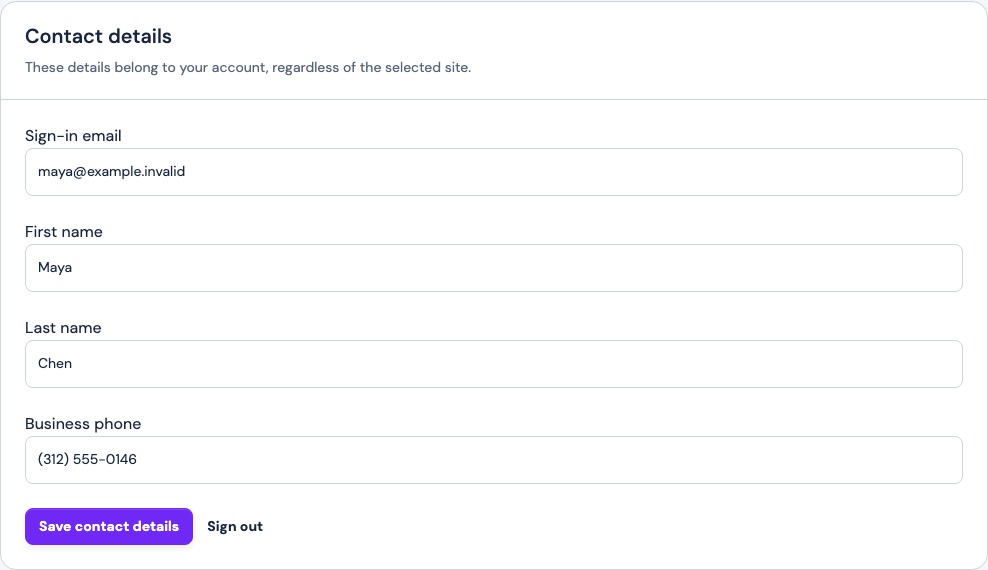
2. Save and verify your contact details
Review First name, Last name, and Business phone. Enter the correct details and choose Save contact details. Look for Saved. Reopen the page to check the new value. The change applies to your Frontpage account and does not require publishing a website.
If the page asks you to finish your account, follow the account setup action it shows. If saving fails, read the message, check the fields, and retry after correcting the indicated problem.
3. Go to the right place for site changes
For someone’s access to a website, open the site’s Team & access settings. For a site subscription, open Usage & plan for that site. These settings belong to the selected site. The account menu also offers Sign out.
Frequently asked questions
Can I change my sign-in email in Contact details?
The page shows the email as read-only. Its save action updates name and business phone.
Does changing my business phone update my website automatically?
Account details and website content are separate. Update and review any page or site setting that shows the number publicly.
Do I publish after saving my name?
No. Save contact details applies to the account.
Where do I give a colleague access to my site?
Use Team & access on that site with an admin account.