
Brand and styles: Keep your website consistent
Set your logo, colors, and fonts in Brand & styles, then review how pages that use those settings look together.
A bakery adds a catering page. It wants the same logo, heading font, and order button color that customers already know from the menu. Shared brand settings give those pages a common starting point.
Set the look once
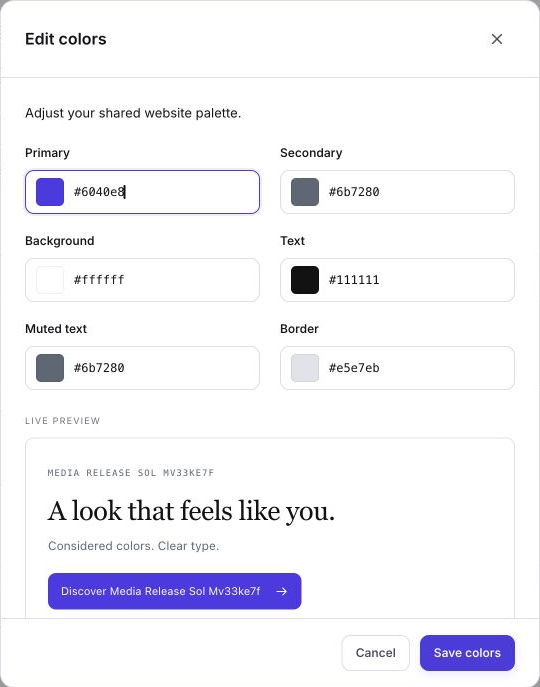
Open Brand & styles for the site. Check the business name and logo, then review the shared colors and fonts. In Edit colors, choose roles by their purpose. Try a main button color that is easy to distinguish from the page background, and check the sample before choosing Save colors. Follow the Brand & styles setup guide for the current controls.
Check two different pages
Open the menu and catering pages in the preview. Compare the logo at a small size, the contrast of the order buttons, and how the headings wrap on a phone. Shared settings affect pages that use them. If one section has its own style, select it in Canvas and ask for a targeted edit.
Review website and email branding separately
Review the ready website preview and publish it when you want visitors to see the new design. If the bakery also wants its newsletters to use a new sender name or reply-to address, open the email sender settings. The website logo and colors serve a different purpose from the sender details a recipient sees in their inbox.
Frequently asked questions
Will every page use the new color?
Pages and components that use the shared color update with that setting. Check sections with custom styles individually.
Can I see how a color looks before saving it?
Yes. The color editor shows a sample. Check the actual page preview as well.
Do I need to redraw my logo for each page?
No. Set the shared logo and verify how it displays on the pages that use it.
Do brand settings change my email reply-to address?
Set and check the reply-to address in email sender settings.