
Contact forms: Turn website enquiries into saved leads
Give visitors a simple way to ask about your work. Frontpage saves their enquiry and lets your team know where to find it.
A customer has a washing machine that stops halfway through a cycle. They want a repair quote, but they reach your website after you’ve closed. A short form gives them a way to tell you what happened and leave an email address so you can follow up.
- Customer requests a quoteThey explain when the washing machine stops.
- Frontpage saves the enquiryYour team can find it in the Forms inbox.
- Your team gets an emailFrontpage sends it to the address you chose.
Ask for the details you need to reply
Ask the Frontpage Agent to add a form to your Contact or Services page. Tell it which questions to ask, which answers are required, and what visitors should see after they submit. For the repair business, a name, email address, and short description of the problem are enough for the first reply.
You can use different forms for different jobs. A general contact form might go to your office inbox. A quote request form can go to the person who handles estimates. In Contact & lead forms, open the relevant form to check its notification address and whether it’s collecting submissions.
Find the request and follow up
Open Inbox in Contact & lead forms to read saved submissions. You can also open an individual form to see its own submissions. The saved record gives you a place to find the details again, even if the notification is hard to find in email.
Each form sends notifications to one address. Use a shared inbox if several teammates should see them. If the visitor supplied a usable email address, you can reply to the notification to follow up with them.
Tell visitors you received their request
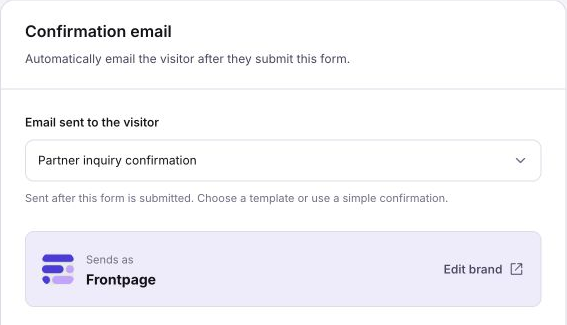
Show a short thank-you message after the form submits. If you enable a separate confirmation email, you can also acknowledge receipt in the visitor’s inbox. For example, say “Thanks for your repair enquiry. We’ll review the details and reply by email.”
If you use a supported external CRM, you can send a copy of a form submission there. The original stays in Frontpage. Your team can use the Forms inbox even if you haven’t connected another CRM.
Set up your first form
Contact forms are included on Free and paid plans. Start with one page, ask for the few details you need to reply, and send yourself a marked test enquiry after publishing. Check both the saved submission and the notification inbox.
Follow the contact form setup guide.
Frequently asked questions
Can I use different email addresses for different Frontpage forms?
Yes. Each form has one notification address. Use a shared address if more than one teammate needs to see a form’s notifications.
Can I still find a quote request if I miss the email notification?
Yes. Open the Forms inbox in Frontpage and look for the saved submission. You can also open the individual form to see its requests.
Can visitors get a confirmation after submitting a form?
Yes. Show a thank-you message on the website and enable a separate confirmation email if you want to acknowledge the request in their inbox.