
Extensions: Add useful visuals and interactions to your pages
Use charts, maps, and galleries to give visitors information they can act on.
A design studio wants people to find its entrance and see its finished work. A map helps visitors locate the building. A photo gallery lets them open a project image and look at the details. Ask the Frontpage Agent for the feature and give it the actual content you want to show.
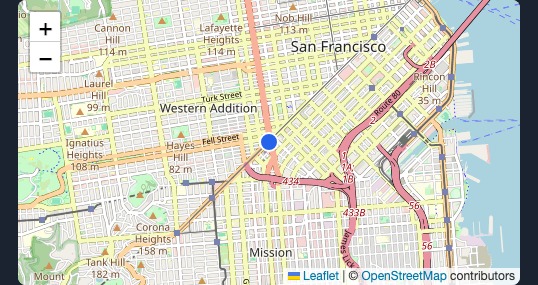
Show where customers should go
Add a location map near the address. Confirm that the marker points to the right entrance. Keep practical details, such as the door number, visible as text. The example on the Extensions page lets visitors pan and zoom. Try the interactive map and gallery to see how each works.
Let customers inspect the work
Use a photo lightbox when small images hide details. A visitor can open a photo and browse larger images without leaving the page. Provide photos you have permission to use and describe what each picture shows. Prepare photos for a website page before adding them to a gallery.
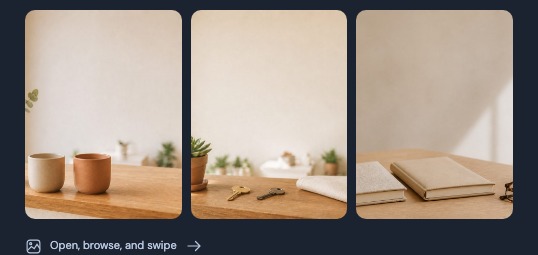
Make a comparison easy to read
A chart can show monthly enquiries or compare service categories. Supply the real values and labels. Keep the figures available in text if readers need exact numbers. Use motion when it clarifies a change or interaction. Follow the Extension setup and preview checks to test the result on a phone and with a keyboard.
Frequently asked questions
Do I have to install a library myself?
Ask the Agent to add a supported Extension and describe the result. Review the generated page before you publish.
Can I add both a map and a gallery to one website?
Yes. Put each one where it helps the visitor and test each interaction separately.
Are the figures in the Extensions demo real business results?
The charts on the demo page use labeled sample figures.
How can I check whether an Extension suits my site?
Open a working example, then check the feature in your own preview with your content and phone layout.