
People CRM: Keep customer details and follow-up in one place
Know what a customer asked for, what your team has done, and who needs a follow-up. Keep the details beside your website and emails.
A customer calls about the repair quote they requested last week. You need their details, the original enquiry, and the note from your teammate. You should not have to ask them to explain the problem again.
Frontpage People CRM keeps saved contact details, notes, follow-ups, and available customer activity together. Find the person, see what happened, and decide what to do next.
“The kitchen tap is leaking. Could you send me a quote?”
Quote sent. Prefers a call after 3 p.m.
See where the
customer stands.
- New enquiryRequest received
- Quote sentWaiting for a decision
- CompletedMove here when the job is done
One person can belong to several groups.
Find the customer before the next conversation
Search by name, email, or phone. Filter by group and stage, or sort the list to find the people you need. Open a record to review their contact details and the activity saved from the Frontpage features your site uses.
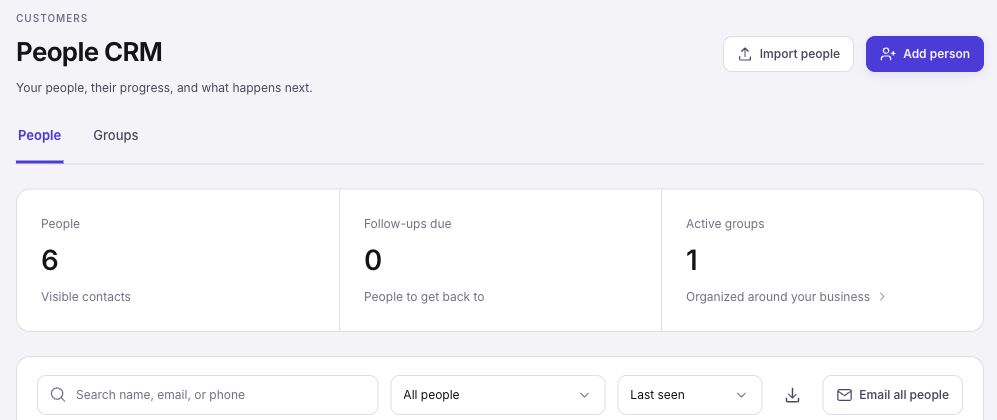
For Jordan's leaking tap, check the original form enquiry and your team's notes before calling back. Available activity can include enquiries, signups, orders, payments, and email history. You see the records Frontpage has for that person, rather than a promised connection to every outside system.
Save details your team can use
Add a person yourself, import an existing customer CSV, or work with contacts from supported website forms and purchases. A contact needs an email address or phone number. Search first so you can update an existing record when the customer is already there.
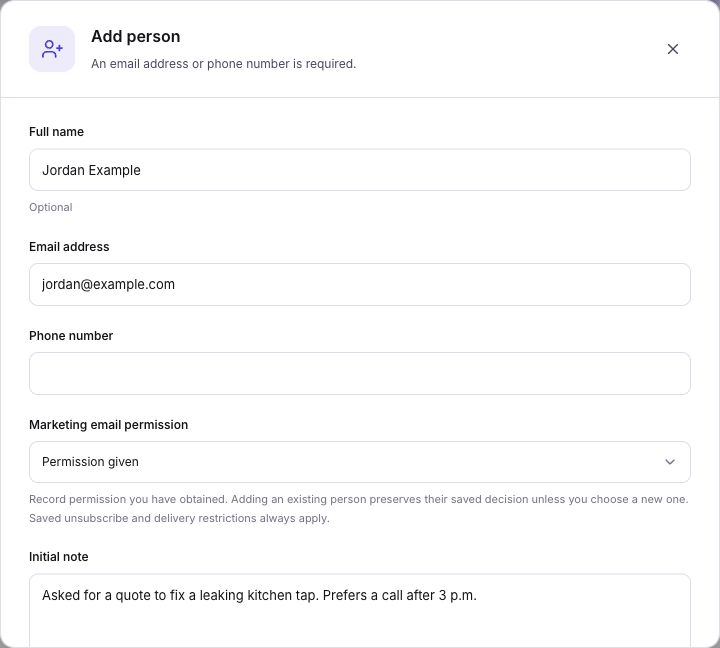
Keep notes short and useful: “Sent the quote. Prefers a call after 3 p.m.” A teammate can read that and continue the conversation. Notes stay private to your team; they do not appear on your public website.
Correct contact details and save a note with their own displayed controls. Customer records save in your workspace. You do not need to publish your website to keep a contact edit.
Group customers and track their progress
Create a group for a useful purpose, such as Repair enquiries or Maintenance customers. Add optional stages to describe progress inside that group. For a repair business, New enquiry, Quote sent, and Completed make the next action easy to understand.
Choose the right list
Keep repair enquiries separate from regular maintenance customers.
Track the next action
See whether the customer needs a quote or is waiting to decide.
Check who needs a call
Set a date and return to Follow-ups due when planning the day.
A person can belong to more than one group, with progress in each. Manage a group yourself or use conditions based on supported saved facts. Review active rules before changing groups or stages, since configured rules can take actions such as sending an email.
The same structure works beyond repairs. An accountant can group tax enquiries and track whether documents are still needed. A shop can organize customers by product interest. Use labels that match the work your team actually does.
Make the next follow-up clear
Choose a follow-up date on the customer record. Use Follow-ups due to review the people your team needs to get back to. When you finish the call, add the outcome and clear the date or choose a new one.
You can also ask the Frontpage Agent to find a customer, save a note, or set follow-up details. It works within the access and features available to your site.
Use customer groups when preparing emails
When you have a useful update, use saved people, a group, or a stage as the audience for a campaign in Emails. An email series provides a separate way to send a sequence of messages.
Adding a person or placing them in a plain group does not itself send a campaign. Active rules can send when their conditions are met. Marketing email permission, unsubscribes, and delivery restrictions still apply. Review the audience and sending controls before starting an email.
Frequently asked questions
What can I see in a Frontpage customer record?
You can see saved contact details, private notes, and available activity such as form enquiries, orders, or payment records. The record only shows activity Frontpage has for that person.
Can one person belong to more than one People CRM group?
Yes. Use groups to organize contacts by shared interests or tasks. Use a stage to track where a person is in a process.
Can I use a People CRM group to choose campaign recipients?
Yes. Choose the group when preparing the email. Review eligibility and honor permission and delivery restrictions before sending.