
How to import people from a CSV file
Move your customer list into People CRM, review it, and fix problems before saving.
Import customer names and contact details from a spreadsheet without adding each person by hand. Frontpage lets you check the columns and fix row errors before the import starts.
This example uses a repair business with five spreadsheet rows. One person appears twice and one email address has a typo. The names and addresses in the screenshots are fictional. Use your own customer file for the actual import.
Before you start
You need editor or admin access to import people. Select the correct website, then open Customers → People CRM.
Export your spreadsheet as a CSV file. Keep it under 5 MB with no more than 10,000 people per file. The first row must contain column headings. Each person needs a valid email address or phone number. A name alone is not enough.
1. Prepare your columns
The importer accepts Email address, Phone number, First name, Last name, Full name, and an optional Email permission column. Other spreadsheet columns do not become custom customer fields through this import.
Simple headings such as first_name, last_name, email, and phone help Frontpage match the columns. Use a full email address. Include the country code in phone numbers. Keep phone cells as text in your spreadsheet so it does not remove the plus sign or leading digits.
| first_name | last_name | phone | |
|---|---|---|---|
| Avery | Chen | avery-guide2@example.com | Blank |
| Morgan | Reed | morgan-guide2@example.com | Blank |
| Avery | Chen | avery-guide2@example.com | Blank |
| Jordan | Lee | jordan-guide2@ | Blank |
| Sam | Patel | sam-guide2@example.com | Blank |
If you have recorded permission for each person, use yes or true for allowed and no or false for not allowed. Leave that mapping skipped if your file does not contain those records. Do not map an unrelated column to permission.
2. Upload and match the columns
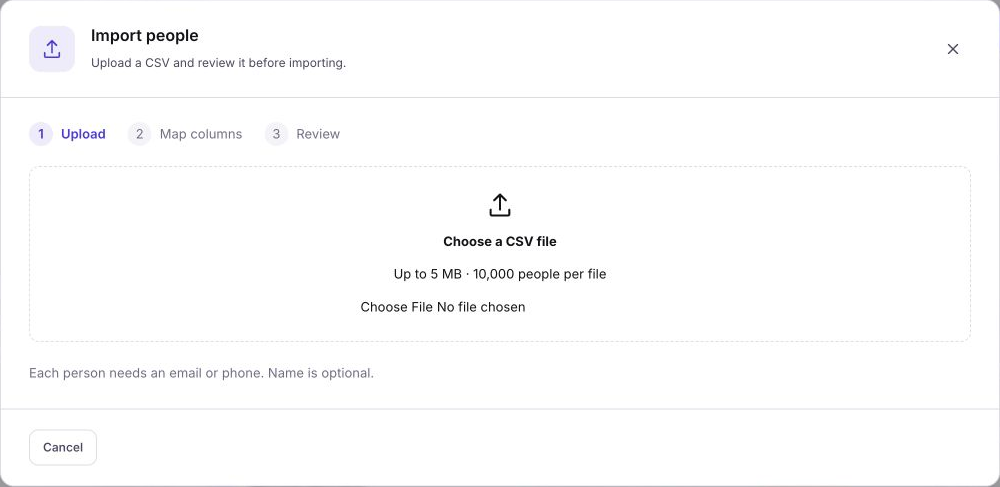
Choose Import people, then select your CSV under Choose a CSV file. Uploading opens a preview. It does not add people yet.
At Map columns, check each match. Choose the correct CSV heading for Email address, Phone number, First name and Last name. Use Full name only when you do not have separate columns. Frontpage uses the first word as first name and the rest as last name. Choose Skip column for a field you do not want to import.
Use the checkboxes under Add to groups if these people should join an existing manual group. This is optional. Importing into a group does not send emails or start email rules.
3. Review duplicates and fix errors
Choose Review import to check one list of people. Each row shows what the import will do. Errors appear beside the row that needs fixing. Choose its edit icon to open that CSV row, then choose Save and review to check it again. The editor uses your file’s column headings and changes the import file, not the saved person. You can also correct the original file and upload it again.
In this example, Avery's duplicate rows combine. Jordan's incomplete address needs a correction. The preview shows three ready people and one row to fix. The import button stays disabled until the errors are fixed.
Existing contact details stay saved. The import can fill blank contact fields rather than replace details already recorded. If an email and phone match two different existing people, resolve that conflict first. Frontpage does not merge those people automatically.
4. Check marketing email permission
When a new person has no recorded permission value in the file, the Email permission choice defaults to I have permission to email these people. New contacts can receive marketing emails by default where no permission column value is supplied. Choose Permission not recorded or Not allowed when that better matches your records.
This default does not clear existing permission decisions, saved unsubscribes, or delivery restrictions. If a customer has already unsubscribed, importing that address again does not make it sendable. Joining a group does not change that.
If you mapped an Email permission column, its values take priority over the default. Check each value and select the confirmation that the values reflect each person's actual permission. When duplicate CSV rows disagree about permission, the opt-out wins.
5. Import and check the result
Once the preview is correct, choose Import with the ready-person count. This submits the import and saves people as it runs. You can close the window after submission; the saved import continues on the server.
Check the result for new people, existing people, and failed rows. Completed people stay saved if some rows fail. Use the retry option for failed rows rather than importing the whole list again.
Choose Done, search for a few imported people, and open their records. Check their names, contact details, group membership, and email status. No emails are sent by the import. Choosing recipients and sending a campaign are separate actions.
Common problems
- Review import is unavailable: map at least an email or phone column.
- A row has an invalid email: correct the address, or clear it if that person has a valid phone number.
- The column count is wrong: check the CSV headings and quoted cells, especially values containing commas.
- A saved person still cannot receive email: check their existing permission, unsubscribe, and delivery status. Another import does not remove those restrictions.
For everyday edits after the import, see How to manage customers in People CRM.
Frequently asked questions
Can I import people who only have a phone number?
Yes. A row needs a valid email address or phone number. A name alone is not enough.
What should I do if Frontpage flags a duplicate or invalid row?
Read the preview before you confirm the import. Correct invalid values in the file and check the duplicate result so you know which record will be used.
Will importing a CSV remove an existing unsubscribe?
No. Importing a contact does not clear an existing unsubscribe or delivery restriction. Map email permission only when the file contains the customer’s actual decision.