
Payments: Let customers pay your business online
Take a one-time service payment from your website and see the payment record in your workspace.
A customer has agreed to a $75 consultation. Instead of arranging payment in another email, you can send them to the consultation page on your website. The page explains what they’re paying for and gives them a Pay now button.
- Consultation pageThe customer sees the service and its $75 price.
- Stripe checkoutThe customer reviews the amount and pays.
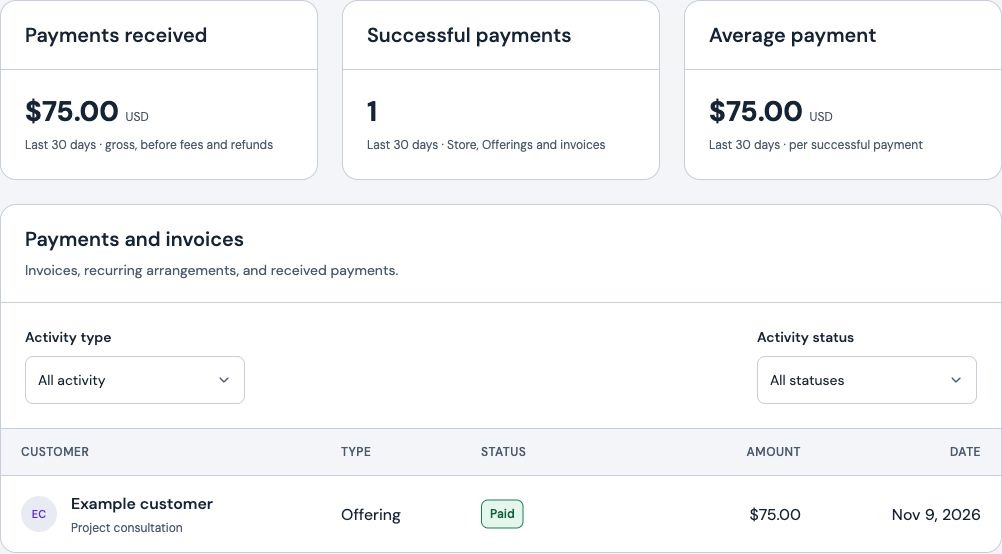
- Payment activityYour team can look up the completed payment.
Give customers a clear way to pay
In Payments → Offerings, save the service name and price. You can also add a short description and choose which customer details to collect. For the consultation, a name and email address help you match the payment to the person you’re working with.
Ask the Frontpage Agent to put that offering’s Pay now button on the right page. Review and publish the website edit when you’re ready. Then open the live page and check that checkout shows the service and amount you expected.
Use Payments for a standalone service or fee. If you sell products that customers add to a cart, set them up in Store. A payment for a service does not reserve a time on your calendar.
See what was paid in your workspace
After checkout, open Payments → Activity. You can filter by Activity type and choose Offerings, then open a record to check the amount and status. Look for the paid record before you treat the consultation as paid.
Connect Stripe before accepting payments
Payments is available on every Frontpage plan, including Free. A site admin connects Stripe and completes its setup. Wait for Frontpage to show that you’re ready to accept payments before sharing a checkout page. Check your Stripe account for the fees and payout schedule that apply to your business. Read Stripe’s payout guide.
Follow the setup guide to add your first Pay now button.
Frequently asked questions
Can I accept service payments on Frontpage’s Free plan?
Yes. Standalone Pay now is available on Free, Starter, Growth, Scale, and Enterprise. A site admin needs to connect Stripe and finish setup before customers can pay.
Does paying for a service reserve an appointment in Frontpage?
No. A standalone Pay now button collects a payment without reserving an appointment. Set up Bookings if customers need to choose a time.
Where can I check whether a Frontpage service payment went through?
In Payments, open Activity and filter by Offerings. Open the payment record to check the amount and confirm its status is Paid.