
How to create an email series and add people
Send a sequence of useful emails, with a wait between steps and a clear view of each person’s progress.
An email series sends saved templates in order. You choose the people who enter and the wait before each later step. For example, a shop can send a welcome email, then send care instructions three days later.
This guide creates that two-step series. It also explains the difference between saving the series, enrolling people, and turning sending on.
Before you start
Email series are available on every plan, including Free. You need an editor or administrator role. Add the people you want to enroll to People CRM first, and check that you have permission to email them.
In Emails → Settings, check the sender name, reply-to address, business address, timezone, and sending hours. Send limits, sending hours, unsubscribes, and other delivery restrictions still apply to a series.
1. Create the series
Choose your site, open Customers → Emails, and select Series. Choose + New series. Enter a Series name, such as “Shop welcome series.” Only your team sees this name.
A new series starts On, but creating or saving it does not add people or send an email. The first step must be saved before you can enroll anyone. If you want to collect people before sending, save your steps and turn the series Off before adding people.
2. Add the welcome email
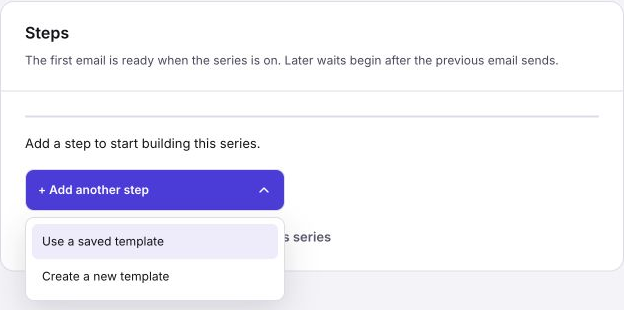
Select + Add another step. Choose one of the two options:
- Use a saved template: choose the template, then select Add step. Select Save series to save the changed step list.
- Create a new template: write the email in the template editor. Both Subject and Preview text are required. Click text in the email to edit it, and use the insertion controls between blocks to add content.
For the welcome email, try the subject “Welcome to our shop” and preview text “A few useful details before your first order.” Keep the message short and link to the page customers need next.
Select Save email & add step. This saves the new shared template and all unsaved series changes, then returns you to the saved series. You do not need to select Save series again for those same changes.
3. Add the second step and set its wait
Use + Add another step again. Choose or create the care-instructions template. Set Wait before this step (days) to 3. The first step has no wait; later waits start after the previous email successfully sends.
| Example step | Timing | |
|---|---|---|
| 1 | Welcome to our shop | Ready when the person enters an On series |
| 2 | Looking after your cotton cap | 3 days after the welcome email sends |
If you added a saved template or changed a wait on the series page, select Save series. If you created the second email, Save email & add step saves both the email and unsaved series changes.
To edit an existing step’s email, click its template name. Save & return saves the shared template and unsaved series changes together. A shared template can be used elsewhere; its edits affect future uses. Emails already queued keep their saved content.
4. Review the sender and test the content
Check the Sender card on the right. Use Edit sender settings if the details need changing.
Open each template and use Test to myself to check its content and links. The workspace sends the test only to your signed-in account, with [TEST] in the subject. A test does not enroll anyone or complete a pending step save. Check the save status before leaving the editor.
5. Enroll people
Save any series changes first. In the right-hand People card, select + Add people. Search by name or email, use the sort and filters, and check the people you want. The picker shows the selected count.
Select Continue. Review the series, eligible people, first email, and exclusions. The final enrollment button tells you whether emails will start. When the series is On, it includes & start emails. Confirm only when the selection and sending state are correct.
Enrollment saves immediately. It is separate from Save series. When the series is Off, new people wait at step 1 without receiving an email. Turning it On later makes their first email ready; it does not skip them to a later step because several days have passed.
When the series is On, enrollment can start email delivery, subject to sending hours and limits. “Ready immediately” does not mean a guaranteed arrival time.
6. Check progress and understand Off
The People card shows enrolled people, those waiting at step 1, and those in progress. Select View progress to search enrolled addresses and check their status and next email. Use Sent to check individual delivery records.
Turn the series Off to stop further sends. People keep their next unsent step. Turning it back On resumes that step without restarting the series or repeating completed steps.
Off does not restart or extend a wait. If the welcome email sent Monday and step 2 has a three-day wait, it becomes due Thursday. If you turn the series Off Tuesday and back On Friday, step 2 can send on the next eligible processing pass. It does not wait another three days. An email already handed to the delivery provider cannot be recalled.
Common problems
- Add people or the switch is unavailable: save the series and at least one valid step first. Check your edit access and any displayed error.
- A person is excluded: read the reason in the enrollment review. Missing contact details, an existing enrollment, or a delivery restriction can affect the result.
- The first email has not arrived: check that the series is On, then review sender setup, sending hours, allowance, and Sent. Do not enroll the person again just to retry delivery.
- A change did not save: read the error, correct the affected field, and save again. Leaving with unsaved edits offers Cancel or Discard and continue. Discard loses those edits.
Check your result: reopen the saved series, confirm both steps and the three-day wait, then check the People count and progress. Turning sending on and enrolling people remain deliberate actions.
Frequently asked questions
Can I add people while a Frontpage email series is off?
Yes. New people can enroll while sending is off. They wait at the first step until you turn the series on.
What happens to a series wait when I turn sending off and back on?
Turning sending off does not restart the wait. Frontpage resumes each person at the next step and can send a step that is already due on the next eligible processing pass.
Does creating a Frontpage email series start sending immediately?
Creating the series does not add recipients. A new series starts On, so check its state and the enrollment confirmation before adding people.