
How to send form enquiries to Pipedrive
Connect Pipedrive to a Frontpage form and verify the new person and linked lead after a test enquiry.
Use a Frontpage site admin account and a Pipedrive account that can use its API. Select the site and form first. For this example, use a service enquiry that asks for a name, email, and phone number.
1. Find your personal API token
In Pipedrive, open Personal preferences → API from the settings menu. Copy your personal API token. If the API tab is missing, ask a company admin to check whether your permission set allows API use. Use the Pipedrive API token instructions if the settings layout differs.
2. Connect Pipedrive in Frontpage
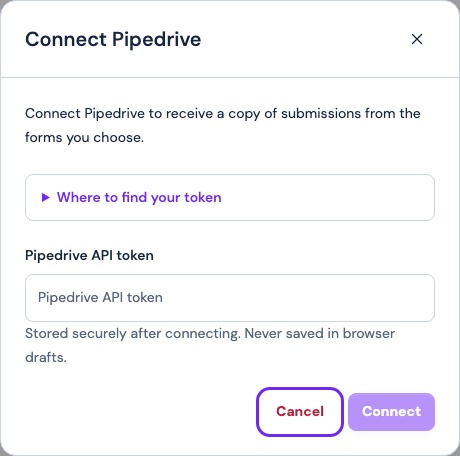
Open Contact & lead forms → Destinations → Connect Pipedrive. Enter the token in Pipedrive API token and choose Connect. Check for Connected. Keep the token in the private connection field. Review how connections and form switches work.
3. Turn on copies for the service form
Open the selected form and turn on Pipedrive under Also send a copy. The connector first creates a person from the mapped name, email, and phone. It then creates a lead linked to that person. Check Leads Inbox for the lead and check the linked person for contact details. This connection does not create a deal.
4. Verify both parts of the test
Submit a marked test enquiry from the public form. Confirm that the saved message appears in Frontpage and check the last copy result. In Pipedrive, open the lead and verify that its linked person has the details you submitted. If the lead is missing but the person exists, check the error before you repeat the test. The person can be created even if the lead request fails.
After you rotate a token in Pipedrive, use Replace token in Frontpage. Check any other systems that used the earlier token. To stop copies for this form, turn off its switch. Compare the records each CRM connection creates.
Frequently asked questions
Does Frontpage make a Pipedrive person or a lead?
It creates a person first, then links a lead to that person when the second request succeeds.
Can a failed copy leave a person in Pipedrive?
Yes. If person creation succeeds and lead creation fails, check Pipedrive before retrying with another submission.
Does the lead appear as a deal?
No. Check the Leads Inbox and the linked person.
What happens to the original enquiry if Pipedrive rejects the copy?
The original remains in the Frontpage form inbox.