
How to create and reuse email templates
Write an email once, then use its content in campaigns, series, and supported email rules.
A shop can use a welcome email to introduce its products and explain delivery. Save that content as a template so your team can find it, improve it, and use it again.
This guide creates that welcome template. You will add the text people see in their inbox, edit the message, and check how it saves when you use it elsewhere.
Before you start
Email templates, campaigns, and series are available on every plan, including Free. Use an editor or admin account, choose the correct site, and open Customers → Emails → Templates.
Have your message, destination links, and any images ready. Check the Sender details as well. A template stores content; the campaign, series, or rule that uses it determines who receives it.
1. Create and name the template
Select + New template. Under Email details, give it a name your team will recognize, such as Shop welcome email. This internal name is different from the subject customers see.
You can also ask the Frontpage Agent to draft a template. Give it the facts and the next action: “Create a short welcome email for our shop. Link to our products and explain that our delivery details are on the delivery page.” Review the actual wording and links before saving.
2. Set the subject and preview text
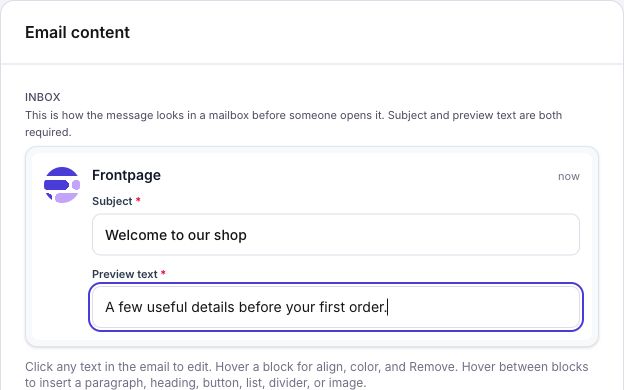
In Email content, complete both required inbox fields:
- Subject: “Welcome to our shop”
- Preview text: “A few useful details before your first order.”
The subject tells the reader what the email is about. Preview text adds a useful detail beside or below it in their mailbox. Use the preview to add information rather than repeat the same words.
3. Write and design the message
Click text inside the email to edit it. Hover over a content block for alignment, color, and Remove. Hover between blocks to insert a paragraph, heading, button, list, divider, or image.
For this welcome email, thank the reader, explain one useful thing about your shop, and link to your products. Use a clear button label such as “Explore our shop.” Check that every button and text link points to the intended page.
Keep the message readable on a phone. Use a short heading, a few brief paragraphs, and one main next action. The sender identity and footer come from your site’s saved email settings.
Welcome to our shop
A few useful details before your first order.
Thanks for joining us. Find our latest products and delivery information on our website.
Explore our shopWrite it once.
Use the saved content where you need it.
- Campaign
- Start a separate email you can edit.
- Series
- Use the template in a saved step.
- Rule
- Use it in a supported email action.
4. Save the template and send yourself a test
Select Save template and wait for the saved state. Reopen the template to confirm the name, subject, preview text, and message stayed as you intended.
Use Test to myself to inspect the email in your own mailbox. It goes to your signed-in account with [TEST] in the subject. Template tests use sample values for supported personal details, so check those details again in the actual campaign or series.
Save any changes after testing. A test email does not replace saving the template and does not enroll people in a series.
5. Use the saved content
Start a campaign
Open the saved template and choose Create campaign. Frontpage creates a separate campaign from the saved content. Name the campaign, choose its recipients, and save it. Review the audience and sending controls before you send or schedule it.
Editing that campaign does not change the shared template. Later template edits do not update the campaign’s separate copy. Follow the campaign guide for the full send process.
Add a series step
Open Emails → Series and choose a series. Select + Add another step → Use a saved template, choose your template, and select Add step. Set later waits in days and select Save series.
If you choose Create a new template from that menu, Save email & add step saves both the new shared template and all pending series changes. It returns you to the saved series. You do not need to save those same changes again.
When you open an existing step’s template from a series, Save & return saves the shared template and pending series edits together. The back control returns to that series. If you leave without saving, the discard dialog lets you stay or lose the unsaved edits.
6. Check where shared edits will apply
The Templates list’s Used in column helps you see where a template is used. Read the notice in the editor before changing shared content.
Saving a shared template updates its future uses, including series and supported email rules. Emails already waiting to send keep their saved content. If you need different wording for a one-time campaign, edit the separate campaign instead of changing the shared template.
Common problems
- The template will not save: check both required inbox fields and the displayed error. Your edits remain on the page while you correct the problem.
- The campaign has older wording: it has its own copy. Edit that campaign or start another from the updated saved template.
- The test has not arrived: check the signed-in address, junk folder, sender setup, and the Sent tab.
- You cannot edit: check your site role and plan. Campaign and series access is separate from template access.
Check your result: reopen the template, confirm both inbox fields, and inspect the test on your phone. Before changing a shared template later, check its uses.
Frequently asked questions
Does saving an email template send anything to customers?
No. A template stores reusable content. The campaign, series, or rule that uses it determines who receives it.
Do Frontpage email templates need subject and preview text?
Yes. Fill in both fields and make the preview text useful on its own. Send yourself a test to check how the message appears.
Can I use the same email template in a campaign and a series?
Yes. Choose the saved template when you prepare the campaign or add a series step. Check whether a change applies to a shared template before you save it.